CounterSketch
Design and price
Start from more than 3,000 customizable styles, refine the piece with your customer, and keep live pricing in the same sales session.

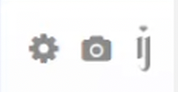
CounterSketch 8.10 adds a third button to the render row, labelled iJewel. One click opens the current jewelry design in iJewel3D for an interactive, customer-facing presentation.
Why this integration exists
CounterSketch builds and prices the piece at the counter. iJewel3D opens that design in a customer-facing view, so the salesperson can present it before the conversation ends.
MatrixGold brought iJewel3D into the designer's workflow in November 2025. CounterSketch now brings the same presentation step to the sales counter.
See MatrixGoldOne workflow, three jobs
The integration adds a presentation step without changing how your team designs, prices, or sends work to manufacturing.
CounterSketch
Start from more than 3,000 customizable styles, refine the piece with your customer, and keep live pricing in the same sales session.
iJewel3D
Click iJewel in the render row to open the current design in a photoreal, interactive presentation while the customer is still deciding.
Stuller
Keep the CounterSketch and Stuller order path you already use. iJewel sits before that order as the presentation step, not in place of it.
CounterSketch product imagery courtesy of Stuller.
Made for the sales floor
Stay in the customer conversation. The design already on screen moves to iJewel through one clearly named render button.
Judge the piece from a photoreal, interactive view instead of being asked to imagine the finished ring from a design viewport.
Add a presentation step without replacing the CounterSketch design, pricing, or Stuller manufacturing workflow your team knows.
What ships in 8.10
01
CounterSketch 8.10 adds a third button to the render row, labelled iJewel.
02
Move around the piece and examine its form, stones, metals, and lighting in a view made for a customer-facing conversation.
03
CounterSketch remains the design and pricing tool. Stuller remains the manufacturing path. iJewel3D handles the real-time presentation between them.
How it works
Browse CounterSketch styles or build from components, then adjust the design alongside your customer.
Choose stones and materials and use the store pricing already configured in CounterSketch.
Select iJewel, the third button in the render row. There is no separate file handoff in the launch path.
Show the design in iJewel3D, return to the sales conversation, and continue through the existing Stuller workflow when the customer is ready.
Requirements
If your store still uses CounterSketch on Rhino 5, update to CounterSketch 8.10 on Rhino 8 before you use iJewel.
Clear boundaries
iJewel3D opens the current design for real-time presentation. It does not become the design tool, set the store price, or produce the manufacturing order.
Questions
The integration ships with CounterSketch 8.10 on Rhino 8 on 1 September 2026. Stores that still use CounterSketch on Rhino 5 must update to use iJewel.
CounterSketch 8.10 includes the iJewel integration. You need a free iJewel account to use it.
Open your design and look in the CounterSketch render row. Of the three render buttons, choose the one labelled iJewel.
No manual file handoff is part of the CounterSketch 8.10 launch path. Click iJewel with the design open to launch the iJewel3D presentation.
No. CounterSketch remains the place to design and price the piece, and the Stuller workflow remains the path to manufacturing. iJewel3D is the customer-facing visualization step.
The button in CounterSketch is called iJewel. The visualization platform is called iJewel3D.
For iJewel help, email contact@ijewel3d.com or contact iJewel3D support on Discord. CounterSketch and Stuller support are available from the official CounterSketch product page.
Give the custom design session a presentation step that both the salesperson and customer can use while the piece is still being decided.
Need help? Email contact@ijewel3d.com or join iJewel3D on Discord.