
Upgrade, downgrade or cancel
Change or cancel your plan on the Plan and billing tab, and see when each change takes effect.
You make all plan changes in Settings, on the Plan and billing tab.
| Change | When it takes effect |
|---|---|
| Upgrade | Immediately. You pay only the prorated difference for the rest of the period. |
| Downgrade | At the end of the current billing period. |
| Cancel | At the end of the current billing period. |
| Monthly to yearly | Immediately. |
| Yearly to monthly | At the end of the current billing period. |
Before you start
- Verify your email address. The platform does not accept a purchase from an unverified account.
- For prices, see ijewel3d.com/pricing.
- On a free trial, you change or cancel the plan in the Stripe billing portal.
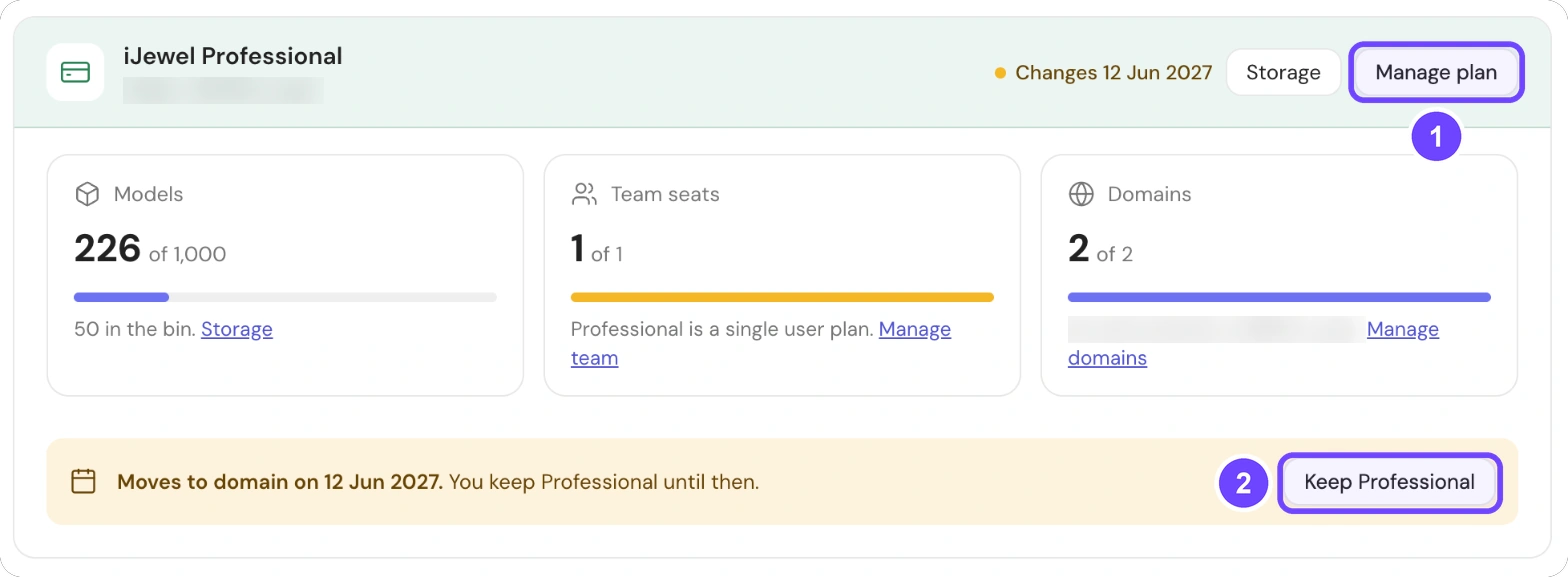
1 Manage plan · 2 Keep Professional (shows when a change is scheduled)
- At the bottom of the left sidebar, select Settings.
- Select Plan and billing.
- On your plan card, select Manage plan (1).
All 3 steps are done.
The Plan and billing window opens. It shows Upgrade, Lower plan and Cancel plan. If your plan can change between monthly and yearly billing, the window also shows Billing cycle. On the Free plan, the window shows only Upgrade.
Upgrade
Select Manage plan on your plan card.
Select Upgrade (1).
Select the plan that you want.
Select Continue to payment (4).
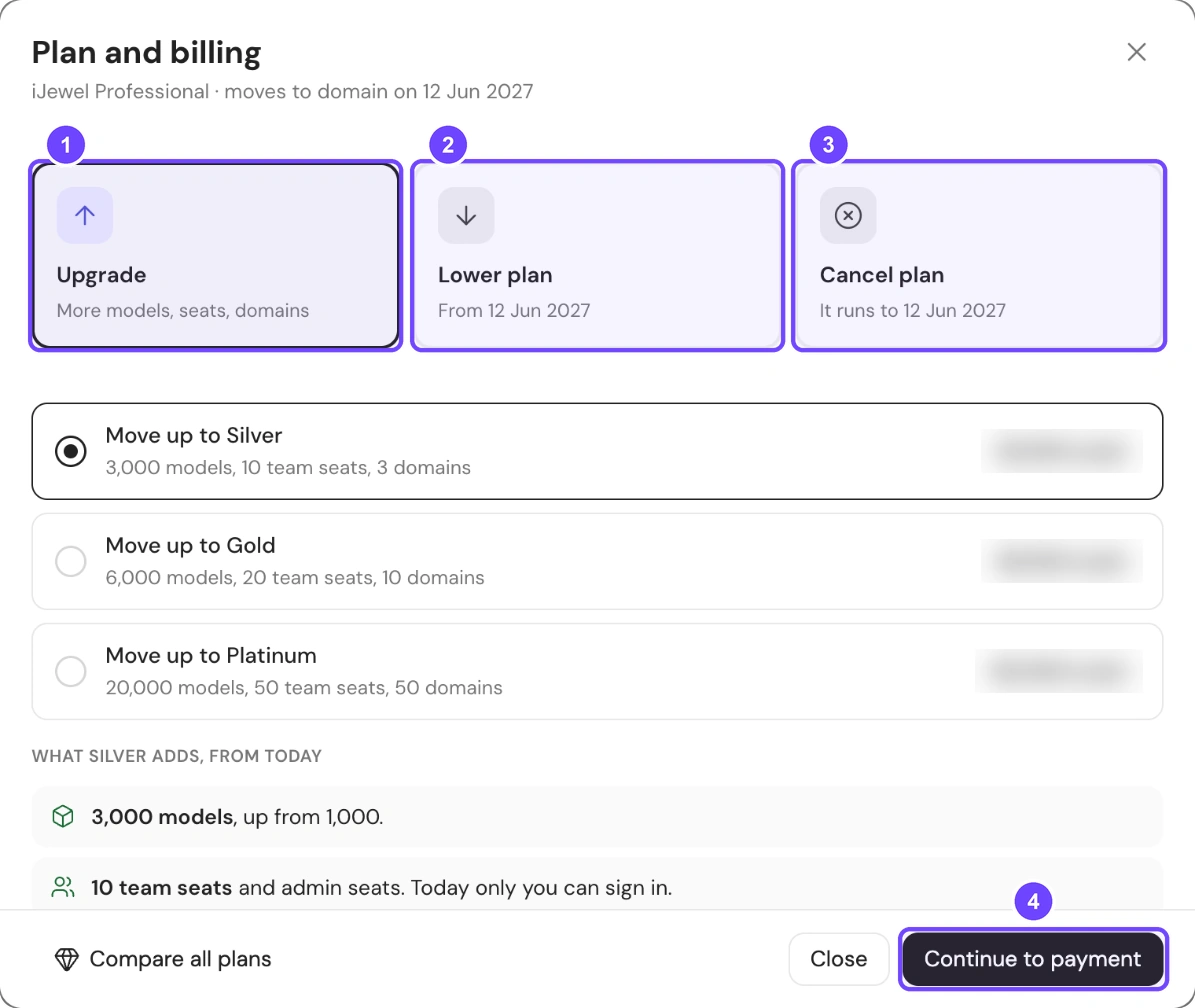
1 Upgrade · 2 Lower plan · 3 Cancel plan · 4 Continue to payment
Check the charge and complete the payment.
All 5 steps are done.
You can also upgrade from the plans page. Select Compare all plans in the window, then select Upgrade on the plan that you want.
To move from a personal plan to an organization plan, complete the Set up your organization form.
Downgrade
Select Manage plan on your plan card.
Select Lower plan (1).
Select the lower plan.
Select Move to <plan> on <date> (2), for example Move to Startup on 12 Jun 2027.
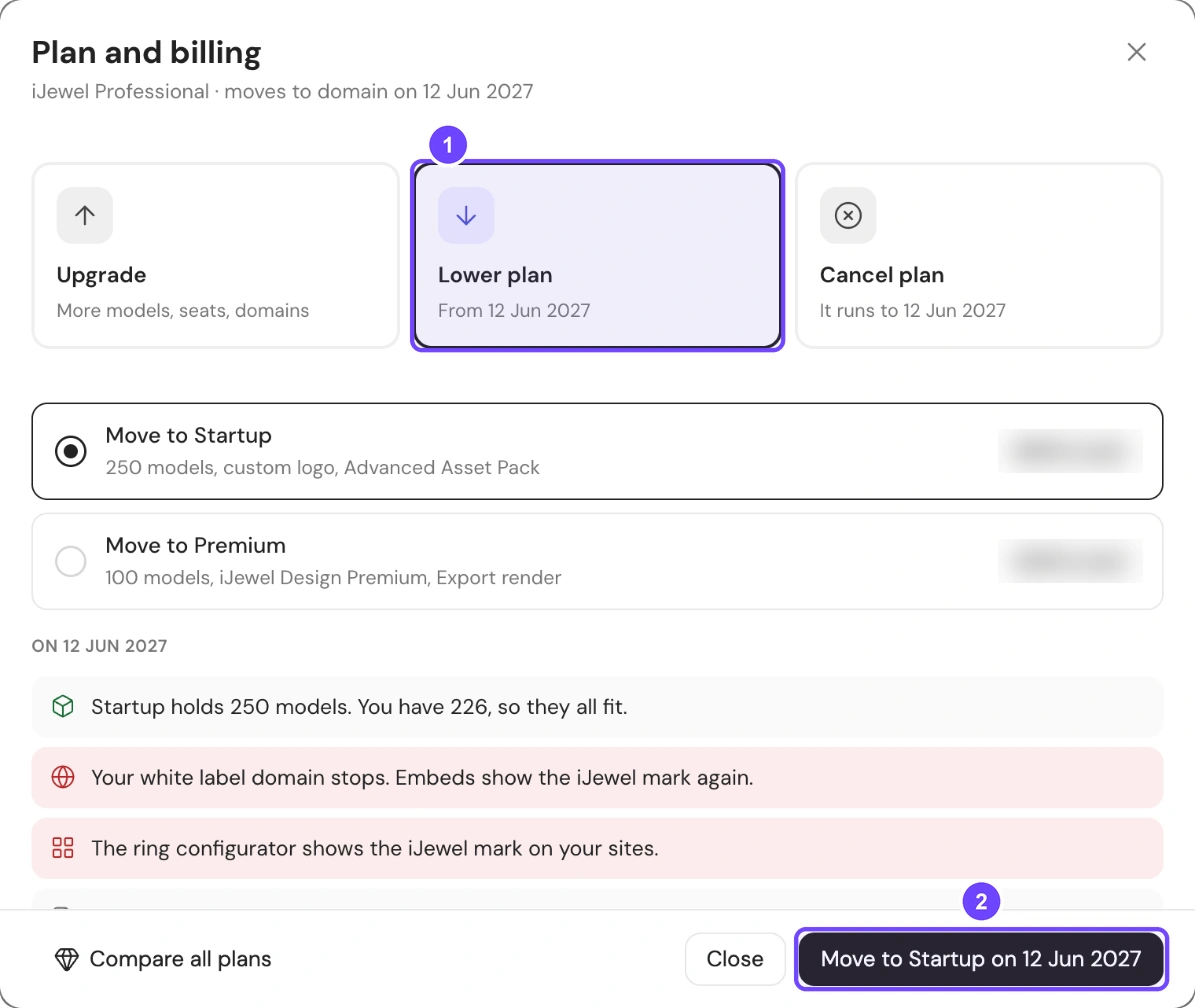
1 Lower plan · 2 Move to <plan> on <date>
In the dialog, select Move to <plan>. To stop, select Keep my plan.
All 5 steps are done.
You keep your current plan until the end of the period. Your plan card then shows the date of the change. To stop the downgrade before that date, select Keep <your plan> on the plan card (3 in the first picture).
If you select Upgrade while a downgrade is scheduled, the platform asks you to cancel the downgrade first. Select Cancel scheduled downgrade.
Cancel
Select Manage plan on your plan card.
Select Cancel plan (1). The window shows what changes when your plan moves to Free.
Select Cancel plan (2) at the bottom of the window.
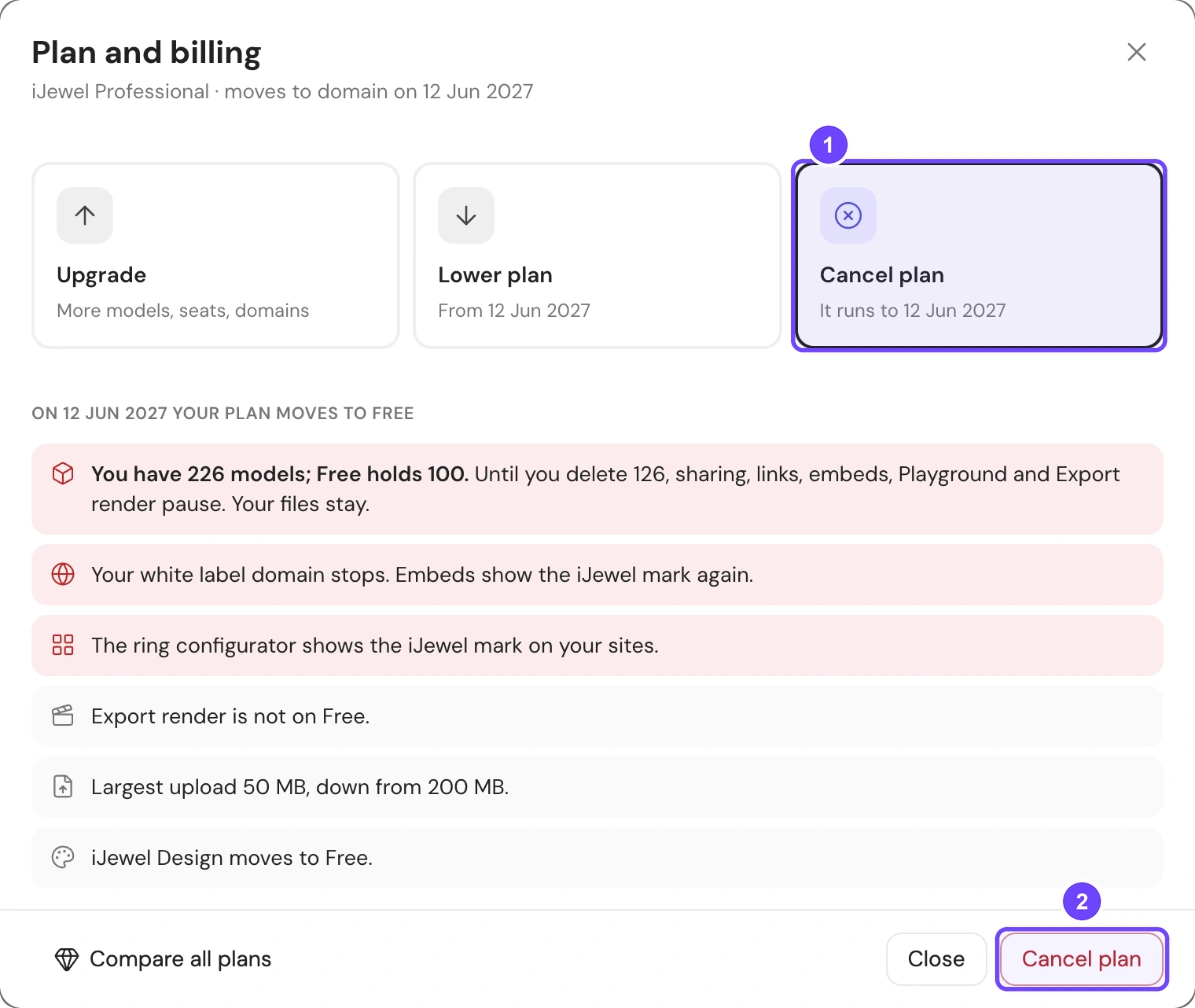
1 Cancel plan (the tile) · 2 Cancel plan (the button)
In the Cancel your plan? dialog, select Cancel plan. To stop, select Keep my plan.
All 4 steps are done.
Your plan runs until the end of the billing period. Then your account moves to the Free plan. A cancel does not return a payment. See Refunds.
To undo the cancel, select Keep <your plan> on your plan card.
Change the billing cycle
If your plan can change between monthly and yearly billing, the window shows Billing cycle.
- Select Manage plan on your plan card.
- Select Billing cycle.
- Select Yearly or Monthly.
- Select Save.
All 4 steps are done.
From monthly to yearly, the checkout opens and shows the charge for the rest of the year. From yearly to monthly, the change starts at your next renewal.