
Invoices
Find and download your invoices, and change your payment method.
Every payment comes with an invoice. Add-ons are on the same invoice and the same billing cycle as your plan.
Before you start
- Sign in to the account that made the payment.
- On a dedicated enterprise instance, you manage billing through your main account. See Enterprise instances.
Download an invoice
Open Settings, then select Plan and billing.
Go to Payment history.
Find the payment by its Date and its Description.
Select Invoice (3) in the row of the payment. The PDF opens.
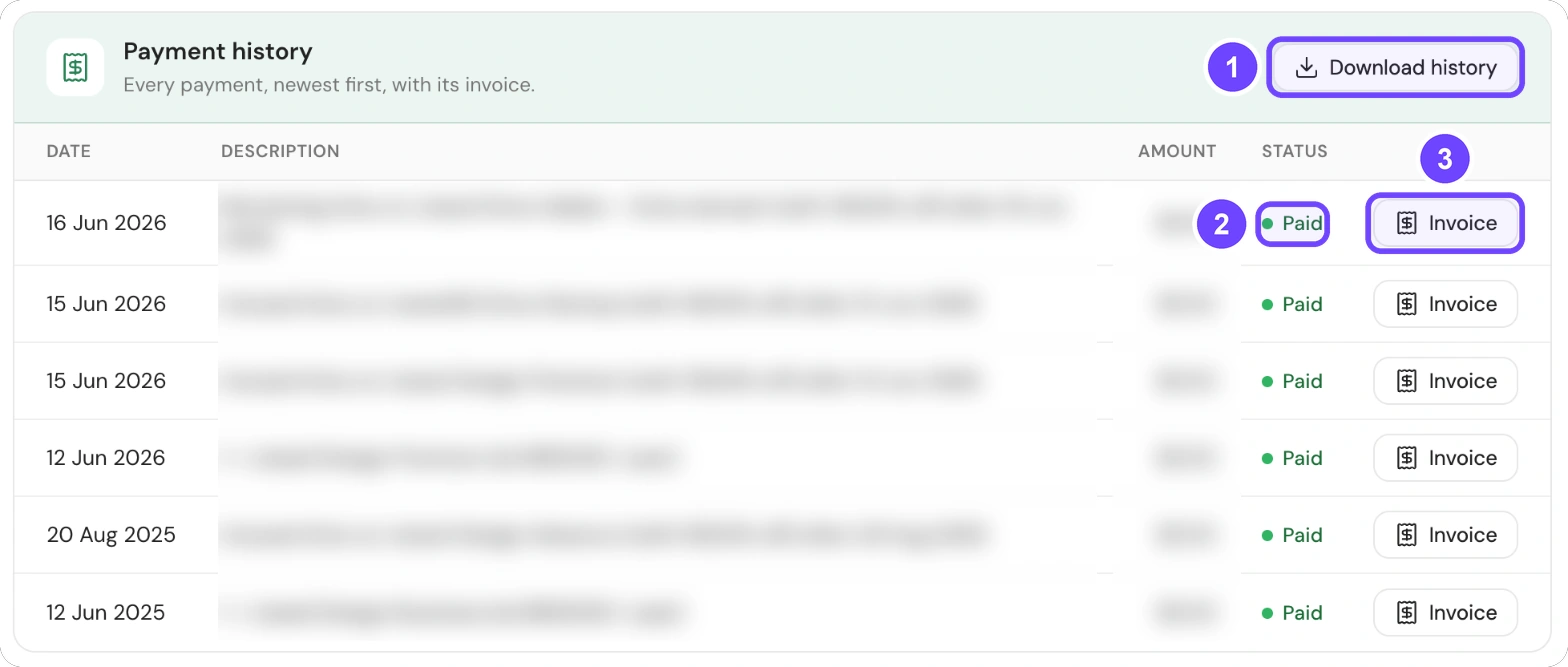
1 Download history · 2 Status · 3 Invoice
All 4 steps are done.
The Status column (2) shows Paid, Due or Failed.
To save the full list, select Download history (1), then CSV.
Open the billing portal
- Open Settings, then select Plan and billing.
- On the Payment method card, select Change card.
The billing portal opens in a new tab. In the billing portal, you can download invoices, change your card and review your subscription. The Payment method card shows only when you have a paid plan.
Your card details
Your card details go directly to the payment provider. iJewel3D does not store them on its servers.
See the date of the next invoice
Your plan card on the Plan and billing tab shows Renews on with the date. On a free trial, it shows Trial ends on with the date.
If a payment fails
Your account does not lose access immediately. The Plan and billing tab shows a Payment due card at the top.
- Open Settings, then select Plan and billing.
- On the Payment due card, select Update card.
- Update your payment method.
All 3 steps are done.
The payment provider then tries the charge again. If the result looks wrong, contact support.