
Reset your password
Set a new password when you cannot sign in, or change your password in Settings.
Before you start
- You must be able to open the email address of your account.
- A new password must have 8 characters or more.
- A new password must be different from your earlier passwords.
Reset a forgotten password
Go to ijewel3d.com/drive/login.
Select Forgot Password?.
Enter the email address of your account in Email (1).
Select Send reset link (2).
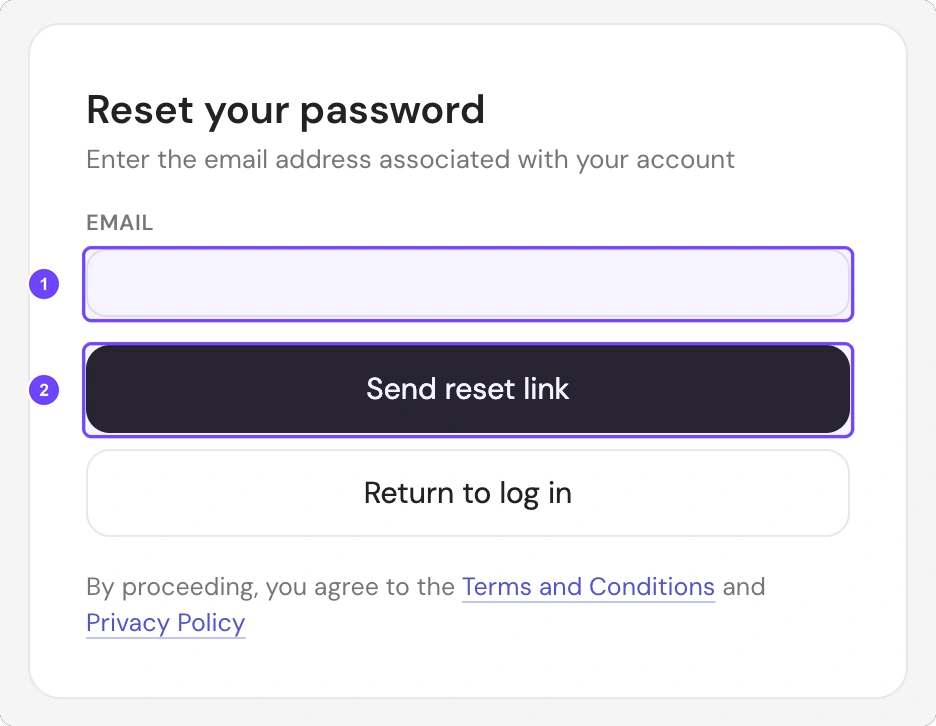
Open the email and select Reset Password. The link works for 20 minutes.
On the Set new password page, enter the new password in Password.
Enter the same password in Confirm password.
Select Continue.
All 8 steps are done.
The page shows Password reset. You can now sign in with the new password.
If the email does not arrive
- Look in your spam folder.
- Make sure that you entered the email address of your account.
- On the Check your email page, select Click to resend.
All 3 steps are done.
If the reset link does not work, select Request a new reset link. Then use the link in the newest email.
Change your password when you are signed in
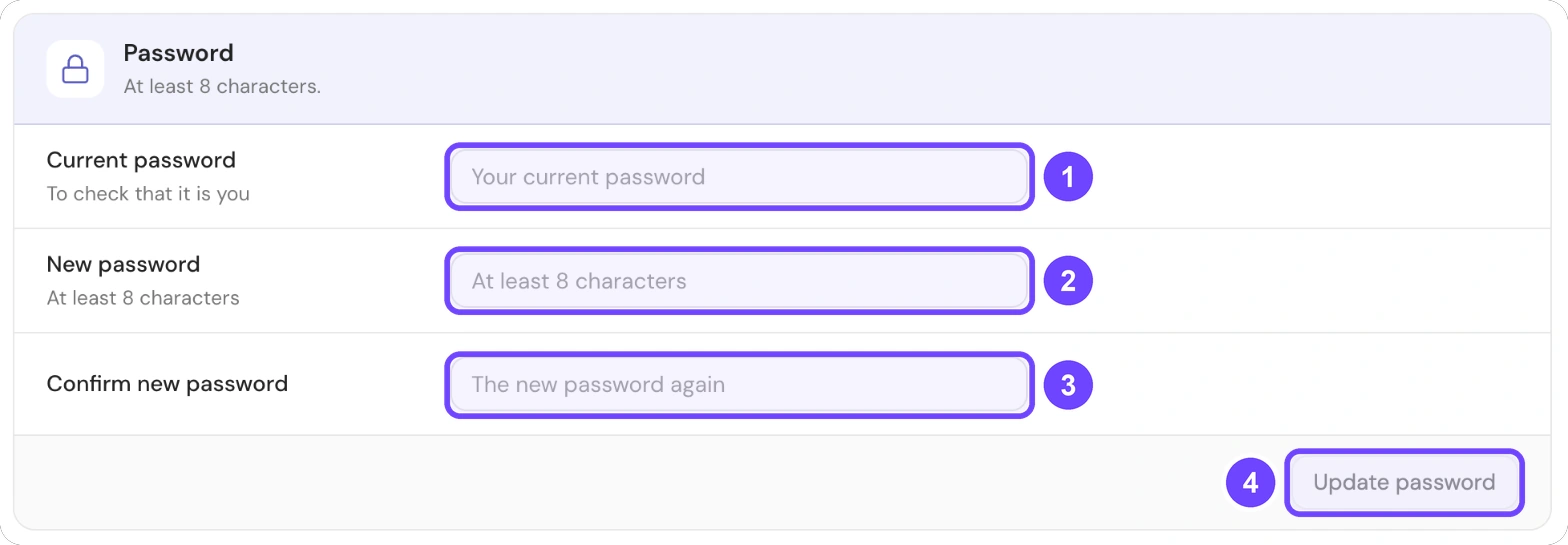
1 Current password · 2 New password · 3 Confirm new password · 4 Update password
- Open Settings. The Settings button is at the bottom of the left sidebar.
- Select Profile.
- Find the Password card.
- Enter your current password in Current password (1).
- Enter the new password in New password (2).
- Enter the new password again in Confirm new password (3).
- Select Update password (4).
All 7 steps are done.
The platform shows the message "Password updated. Other devices stay signed in until you sign them out."
Dedicated enterprise instance
On a dedicated enterprise instance, only an admin sees the Password card. Other members use Forgot Password? on the login page.