
Add-ons: domains and model packs
The add-ons that you can buy on top of a plan, who can buy them and where.
An add-on gives you more of one thing without a change of plan. You buy add-ons in Settings, on the Plan and billing tab, in the Extras card.
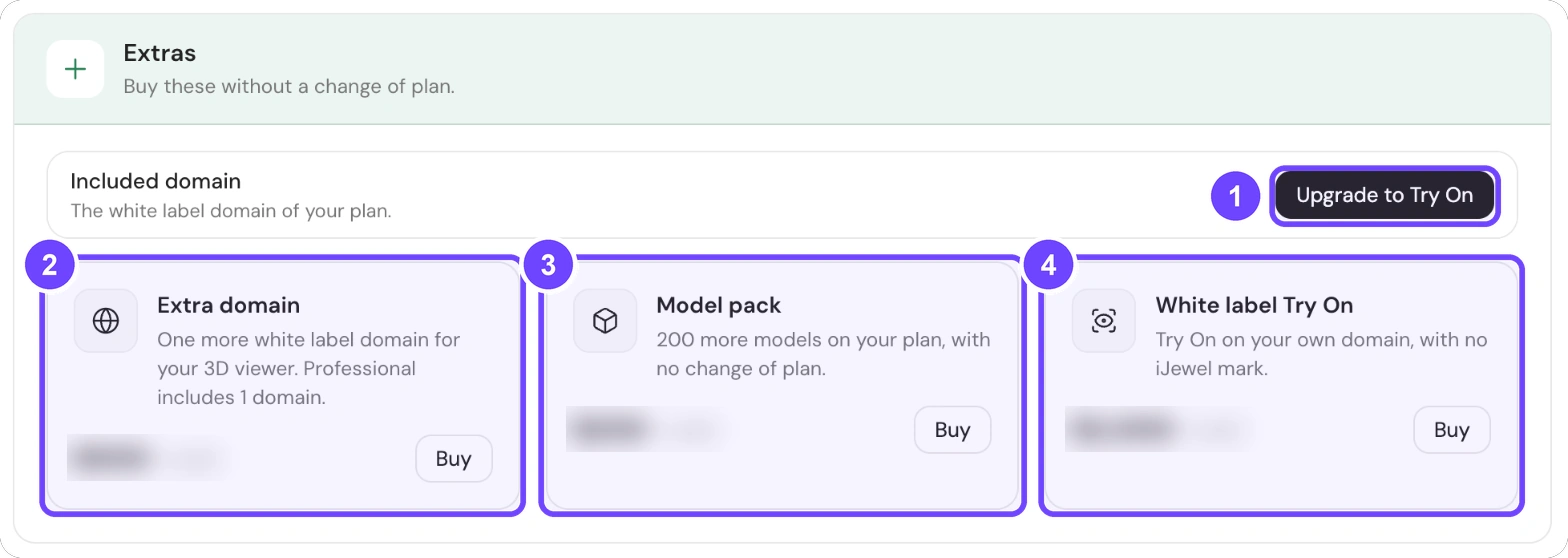
1 Upgrade to Try On · 2 Extra domain · 3 Model pack · 4 White label Try On
| Add-on | What it adds |
|---|---|
| Extra domain (2) | One more white label domain for your 3D viewer. |
| Model pack (3) | 200 or 1,000 more models on your plan limit. |
| White label Try On (4) | Try On on your own domain, with no iJewel mark. |
| Upgrade to Try On (1) | Try On on the domain that your plan includes. |
For prices, see ijewel3d.com/pricing.
Buy an add-on
Step 1 of 4
- Open Settings, then select Plan and billing.
- Go to the Extras card.
- Select Buy on the add-on that you want.
- Complete the payment.
All 4 steps are done.
The add-ons that you have show at the top of the Extras card, for example White label domains, Try On domains or Included domain.
Who can buy add-ons
- Domain and Try On add-ons are available on the Professional plan and on the organization plans.
- Model packs are available only with yearly billing.
- On personal plans, the model pack has 200 models. On organization plans, it has 1,000 models.
- The Extras card shows all add-ons. If your plan does not permit an add-on, the add-on shows what it needs: the plan, Needs a paid plan or Yearly billing only.
How add-ons work
- Add-ons are on the same billing cycle and the same invoice as your plan.
- A white label domain does not make Try On white label. For that, you need a Try On add-on.
- You can also buy a domain with Buy domain in the Domains card, on the Apps, embed and API tab.
- To buy more or to cancel, select Manage next to the add-on in the Extras card. Then select Buy more, Cancel or Resume.
- To cancel an add-on, enter the number in Number of items to cancel. Then select Confirm cancellation. If you cancel all of them, the button is Cancel all.