
Invite team members
Give a colleague a role and folder access in your organization workspace.
Team members are a feature of the organization plans. An admin gives each colleague a role and a folder.
| Plan | Team members | Admin seats |
|---|---|---|
| Silver | 10 | 2 |
| Gold | 20 | 5 |
| Platinum | 50 | 10 |
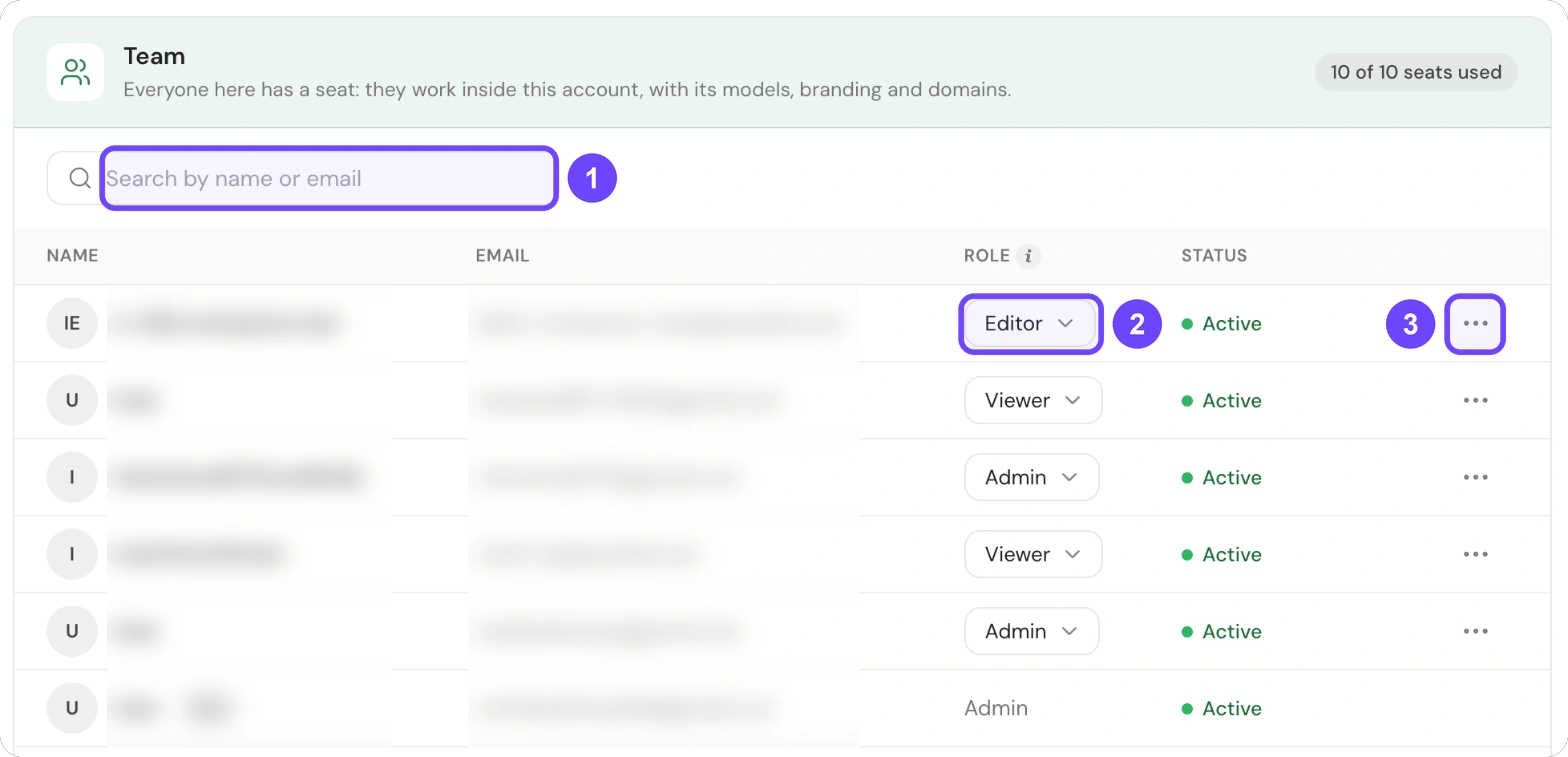
1 Search by name or email · 2 Role · 3 Row menu (…)
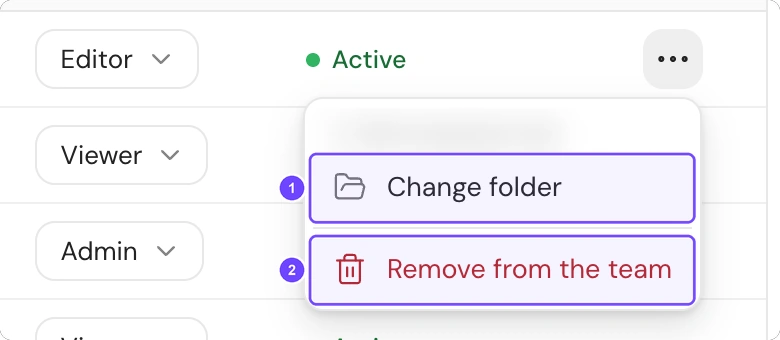
1 Change folder · 2 Remove from the team. The menu can show more entries, for example Give access on a dedicated enterprise instance.
On a personal plan, the Team card shows only you, with Silver and higher: you need an organization plan to add people.
Before you start
- You must have the admin role.
- Your colleague needs an iJewel3D account with a verified email address. See Create an account.
Give a colleague access
Do the steps in this order. Give access sets the role to Viewer and gives every folder. If you do it last, it replaces the role and the folder that you set.
- Open Settings, then select Team.
- At the bottom of the Team card, turn off Hide guests. A new user has the Guest role, and the list hides guests.
- Enter the email address of your colleague in Search by name or email.
- On a dedicated enterprise instance, open the row menu (…) and select Give access. Then select Give access again to confirm.
- In the Role column, select a role. Then select Change role. See Roles.
- To limit the folders, open the row menu (…) and select Change folder.
- Select the folder that your colleague can open.
All 7 steps are done.
If your colleague does not see the workspace
Ask your colleague to sign in to the main account on the shared platform. Then the workspace shows under Switch workspace in the account menu. The account menu opens from the name at the bottom of the left sidebar.
If the Status column shows Email not verified
Your colleague must verify the email address first. Then you can set the role and the folder.
Remove access
- Open Settings, then select Team.
- On a dedicated enterprise instance, open the row menu (…) and select Remove from the team. Then select Remove from the team again to confirm.
- On other workspaces, set the role to Guest. A guest has no access.
All 3 steps are done.
Share one file with a person outside your team
- Open the Share dialog of the file.
- Select People.
- Enter the email address in Add people by email.
- Select Invite.
All 4 steps are done.