
Sign in with email or Google
Sign in to the iJewel platform with your email and password, or with your Google account.
The sign-in options depend on where your account is.
| Where your account is | Sign-in options |
|---|---|
| Shared platform | Email and password, or Google |
| Dedicated enterprise instance | Email and password |
Before you start
- You need an account with a verified email address. See Create an account.
- A dedicated enterprise instance has its own sign-in address. Ask your administrator for it.
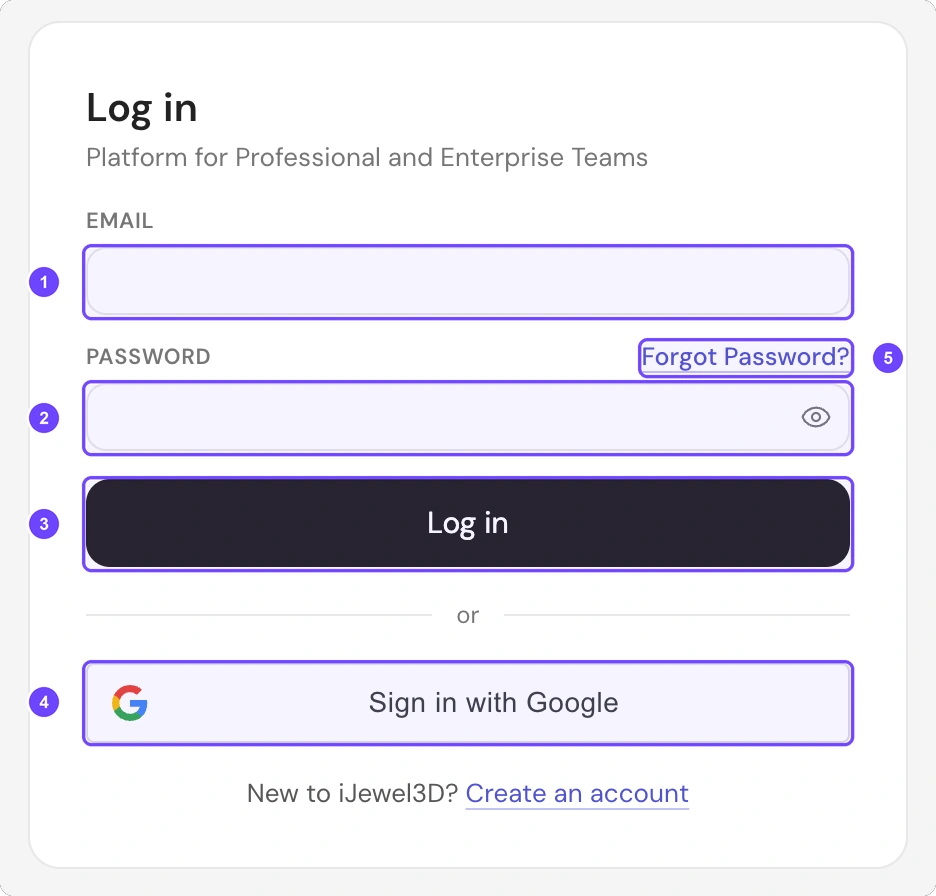
1 Email · 2 Password · 3 Log in · 4 Sign in with Google · 5 Forgot Password?
Sign in with email
Step 1 of 4
- Go to ijewel3d.com/drive/login.
- Enter your email address in Email (1).
- Enter your password in Password (2).
- Select Log in (3).
All 4 steps are done.
Sign in with Google
Step 1 of 3
- Go to ijewel3d.com/drive/login.
- Select the Google button below Log in (4).
- Select your Google account in the window that opens.
All 3 steps are done.
No Google button
A dedicated enterprise instance does not show the Google button. This is by design. Sign in with your email and password.
If you cannot sign in
| Message | What to do |
|---|---|
| "Please verify your email to login" | Open the verification email and select the link. |
| "Couldn't sign in" | Check the email address and the password. Then try again. |
| "Couldn't sign in with Google" | Try again, or sign in with your email and password. |
If you do not know your password, select Forgot Password? on the login page.