
Configurators (Beta)
Let customers design a ring, a pendant, a bracelet or earrings in 3D, with rules and prices, from templates or your own models.
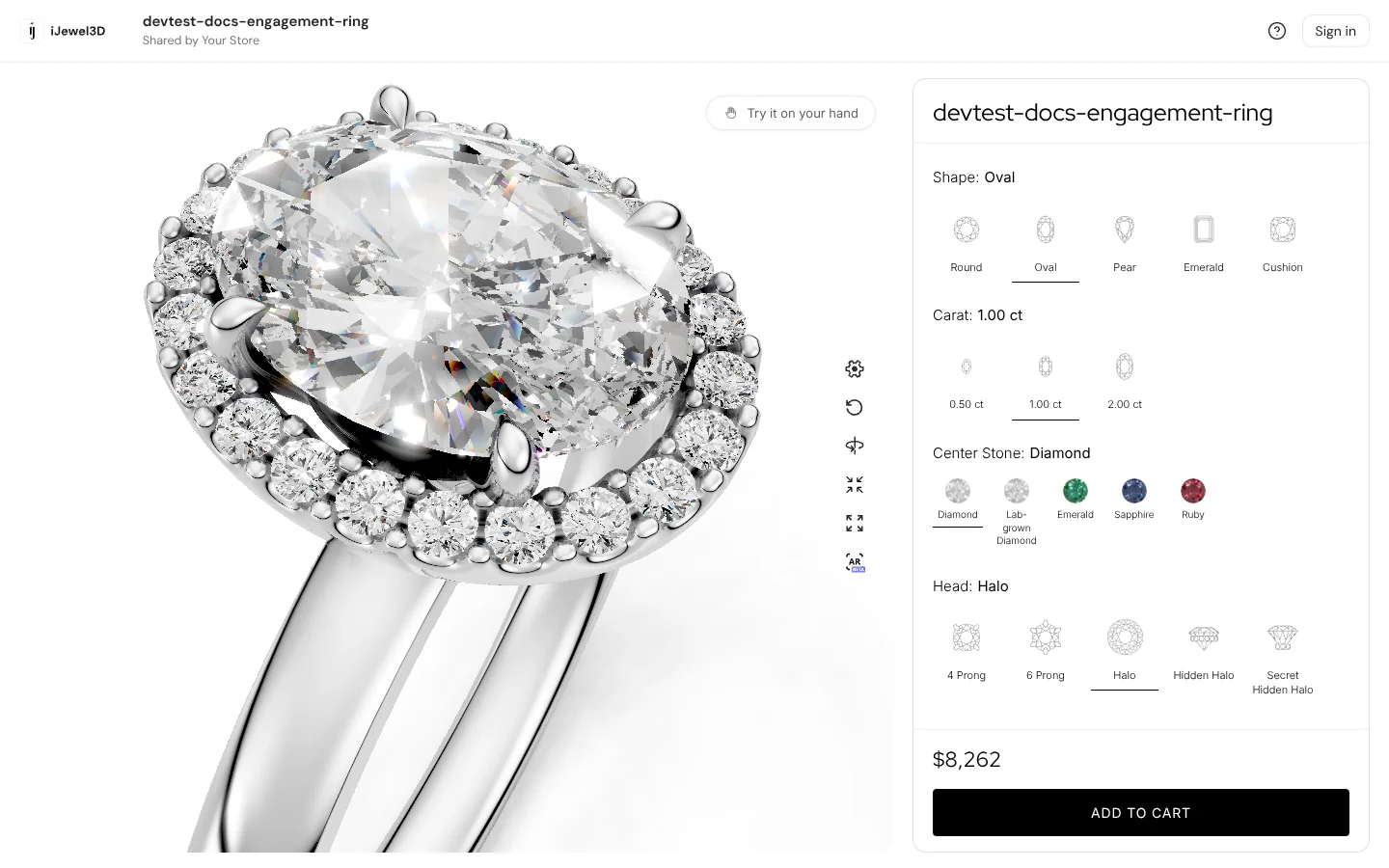
A configurator is a 3D page where your customer designs a piece of jewelry. The customer picks a shape, a carat weight, a head, a band and a metal. The 3D model changes with each pick, and the price updates.
You make configurators in the iJewel platform, in the Configurators section. You start from a template or from your own 3D models. You do not write code.
Beta
The new Configurators section is a beta, at ijewel3d.com/drive. It works on your real files. Read About the beta before you start.
What your customers see
| Part of the page | What it does |
|---|---|
| The 3D view | The piece turns and zooms in real time. With Try it on your hand, a ring shows on the customer's hand through the camera. |
| The options panel | One row of pictures for each choice, for example Shape, Carat or Shank Metal. An option that does not fit the other picks is grey, with your reason under the row. |
| The price | It changes with each pick. You can also show the lines that make the price. |
| Add to cart | A button with your own text. Your website can receive the design and its SKU code. |
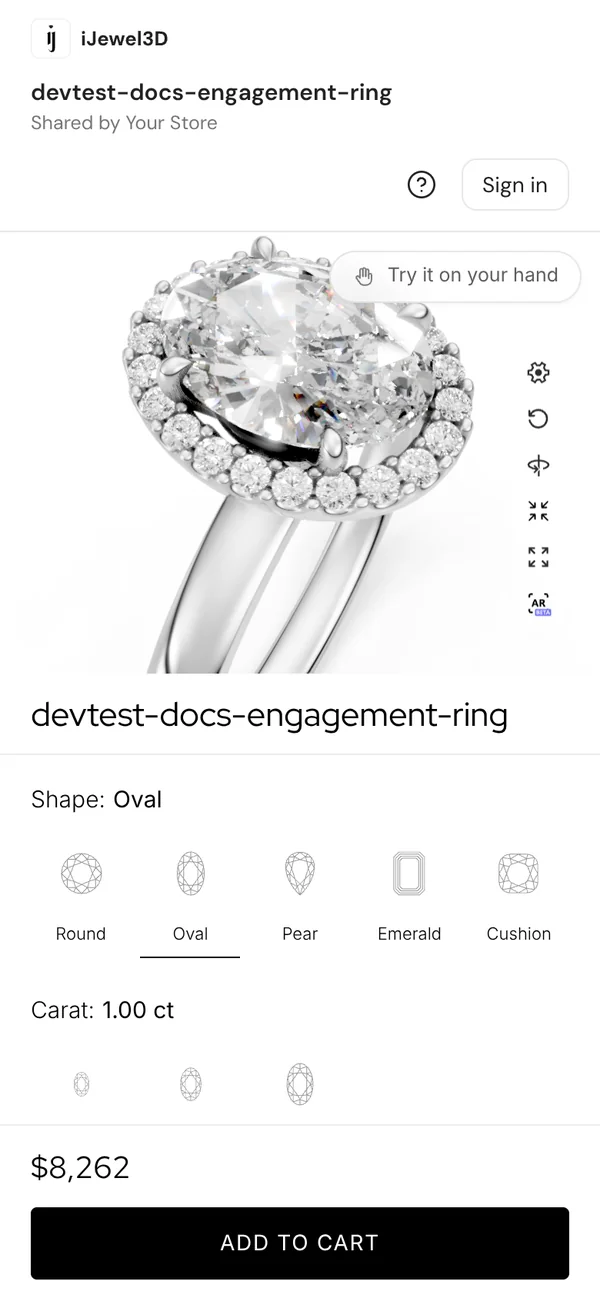
On a phone, the options panel goes under the 3D view.
What you can make
| Template | What it has |
|---|---|
| Engagement ring | Shape, carat, center stone, head, shank and two metals. 118 models. |
| Classic solitaire | A small ring set to learn with. 15 models. |
| Prong and bezel | Prong and bezel heads. 50 models. |
| Halo and pavé | Halo heads and pavé shanks. 55 models. |
| Empty ring | The lists of a ring, with no options. |
| Pendant necklace | Shape, carat, chain, length, metal and gemstone. |
| Tennis bracelet | Style, total carat, length, metal and gemstone. |
| Stud and drop earrings | Style, shape, center carat, back, metal and gemstone. |
| Start from scratch | Nothing. You add your lists and your 3D files. |
The template models come from the iJewel library. You can keep them, replace them with your own models, or delete them. See Templates beyond rings.
The main ideas
| Word | What it means | Example |
|---|---|---|
| List | One choice that the customer makes. | Shape |
| Option | One answer in a list, with a picture. | Oval |
| Part | A piece of the jewelry that has its own 3D files. | Head, Shank |
| Material list | A list that changes the color of a metal or a stone. It needs no 3D file. | Head Metal |
| Combination | One way to put the options together. | Oval · 1.00 ct · Halo · Classic shank |
| Rule | A condition on combinations: not allowed, an extra price, or another model. | No tulip head with an emerald shape |
| Price model | How a price is made from tables, inputs and lines. | Metal weight × price per gram |
| Publish | Make your last changes the version that customers see. | Select Back in the editor |
The lists of a part decide which 3D file shows. For example, the Head part has the lists Shape, Carat and Head. Each combination of these three lists has one head file. See Your own 3D models.
How the work goes
- Create a configurator from a template or from scratch.
- Set up the options and lists in the panel of the editor.
- Add your own 3D models, or keep the library models.
- Add rules for the combinations that you do not make.
- Set the prices.
- Preview and publish. The editor saves each change. Back publishes.
- Add it to your website, or send the link.
All 7 steps are done.
Where your configurators are kept
Each configurator is a folder in My Drive, inside a folder with the name Configurators. The first configurator that you make creates this folder. Your uploaded 3D files and pictures are in the folder of the configurator. The library models are links: they are not copied into your files.
Wedding bands
The Configurators section also lists your Wedding Band Builders. They have their own guide: Wedding Band Builder.