
Quick start
Make your first configurator from a template, try it as a customer, publish it and share it.
This takes about ten minutes. You do not need 3D files: the template brings its models.
Before you start
- You need an iJewel3D account.
- Read About the beta: the beta works on your real files.
Open the Configurators section
- Open ijewel3d.com/drive and sign in.
- Select Configurators in the sidebar. It has a Beta tag.
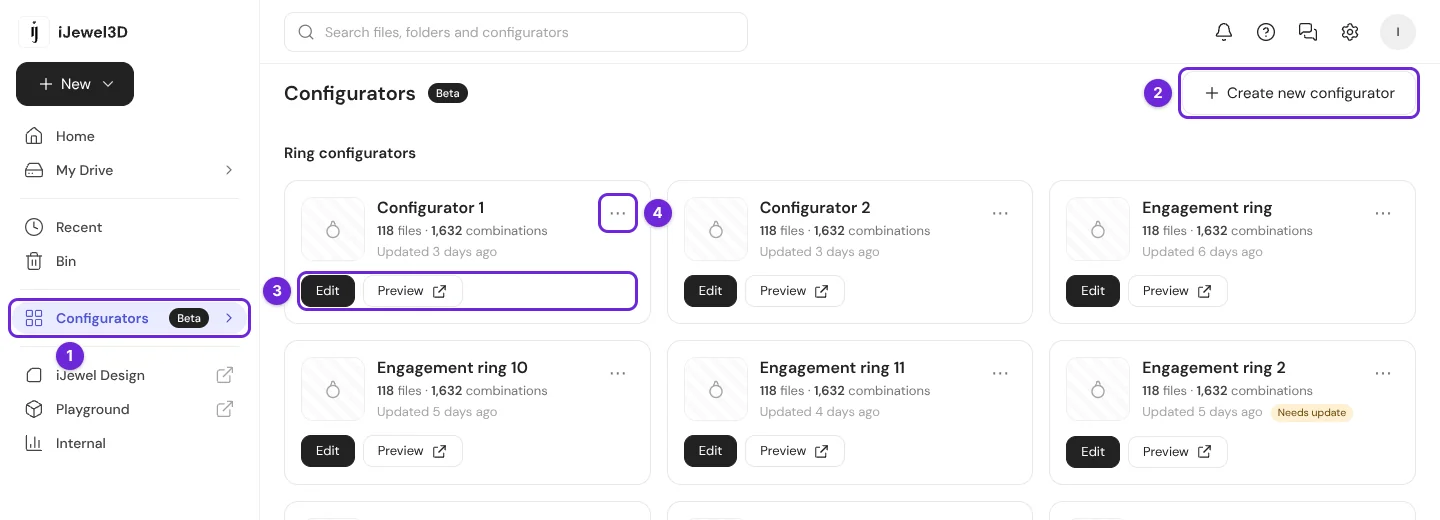
| # | What it is |
|---|---|
| 1 | Configurators in the sidebar. |
| 2 | Create new configurator. |
| 3 | On each card: Edit opens the editor. Preview opens the customer page in a new tab. |
| 4 | The ⋯ menu of the card: share, rename, duplicate and more. Refer to Add it to your website. |
Create it from a template
- Select Create new configurator.
- Keep Templates selected.
- Select Engagement ring. To see a demo first, select Preview on the card.
- Select Create configurator and wait some seconds.
All 4 steps are done.
The editor opens with the message "Created from the template. Replace or delete any model in the panel."
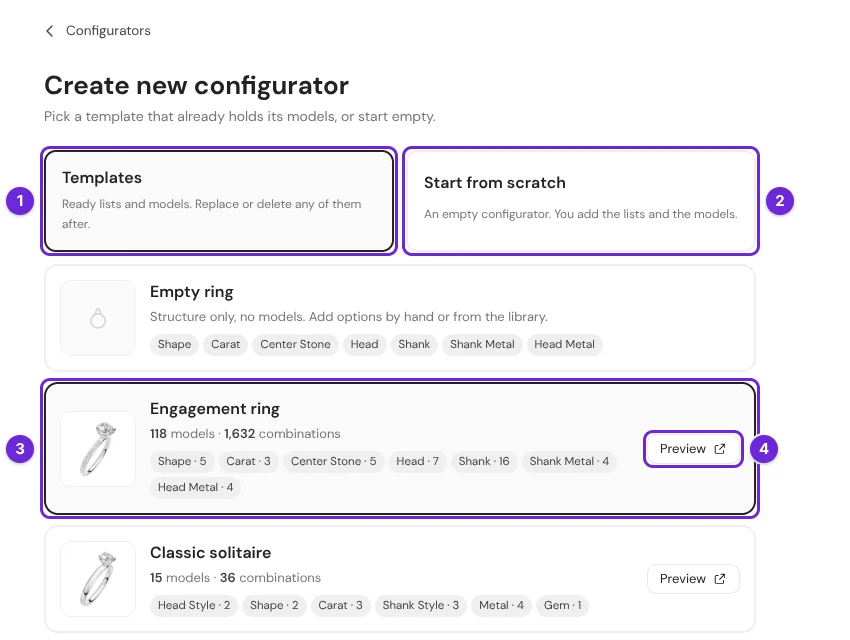
| # | What it is |
|---|---|
| 1 | Templates: lists and models that are ready to use. |
| 2 | Start from scratch: an empty configurator for your own models. |
| 3 | A template card: its number of models and combinations, and its lists. |
| 4 | Preview opens a demo of the template in a new tab. |
Give it a name
- Select the name in the toolbar, at the top left.
- Type a Title. It shows above the options. Add a Line under the title if you want one.
- Select Save changes.
All 3 steps are done.
Choose where customers start
Select options in the panel, for example Oval, 1.00 ct and 14K Yellow Gold. The 3D view changes. The options that you pick are the start of the configurator for your customers.
Try it as a customer
- Select Hide edits in the toolbar. The pencils go away, and the panel works as your customer sees it.
- Pick some options and look at the price.
- Select Hide edits again to go back to editing.
All 3 steps are done.
Publish
Select Back (the arrow at the left of the name). The editor saves your last changes and publishes them. Customers now see this version.
The editor saves each change
There is no Save button. Each change is saved after a moment. A change goes to your customers only when you publish: select Back, Embed or Open in Playground. Refer to Preview, save and publish.
Share it
- In the editor, select Embed. As an alternative, on the card, select ⋯ → Share & embed.
- Below Who can open it, select Anyone with the link.
- Copy the Link and send it to a customer, or choose a way to add it to your website.
All 3 steps are done.
Refer to Add it to your website.
Related pages
- Options and lists
- Your own 3D models
- Rules
- Prices. The template prices are examples.