
Preview, save and publish
How the editor saves each change, how you try the configurator as a customer, and how your changes go live.
The editor keeps two versions of your configurator.
| Version | What it is |
|---|---|
| Your working version | It holds each change that you make. Your customers do not see it. |
| The published version | Your customers see this one, on the link and on your website. |
The editor saves each change
There is no Save button. Each change is saved less than a second after you make it. Many quick changes are saved together. The save status shows at the bottom of the Manage window.
| Status | What it means |
|---|---|
| Saving… | The change is on its way. |
| Saved 10:42 or All changes saved | Your working version is saved. |
| Not saved. The next change tries again. | The save did not get through, for example with no internet. Make another change, or check your connection. |
| Not live yet: add a list | The configurator has nothing to show yet. |
| The last save kept the older version: reason | The change is saved, but it cannot be published. The reason tells you what to correct, for example a price test that fails. |
If you close the tab while a change waits, the browser asks you to stay. Stay a moment, then close the tab again.
Preview
Select Hide edits in the toolbar to see the panel as your customer sees it. The rules apply, and Add to cart shows the order that your website receives. Select Hide edits again to edit.
When the last save kept the older version, the preview says "The preview shows the last version that compiled", with the reason.
To see the published version as your customer sees it, select Preview on the card of the configurator. It opens in a new tab.
Publish
Three buttons publish your working version.
| Button | What it does |
|---|---|
| Back (the arrow at the left of the name) | Saves, publishes and goes back to the list. |
| Embed | Saves, publishes and opens the dialog to add it to your website. |
| Open in Playground | Saves, publishes and opens the scene in Playground. |
The publish continues in the background, also after you go back to the list. If it does not get through, a message names the configurator and tells you why, for example "name — Not published: … Shoppers see the last published version."
A change is not live until you publish
The autosave keeps your working version safe, but your customers do not see it. Select Back when you are done. If you closed the tab without Back, open the configurator again and select Back.
After a publish, the link and the embed can show the older version for up to 5 minutes.
Changed in the background
The editor checks that nobody changed the configurator since you opened it. A change can come from a second tab, from a teammate, or from Playground. Then your change is not saved, and the editor asks what to do.
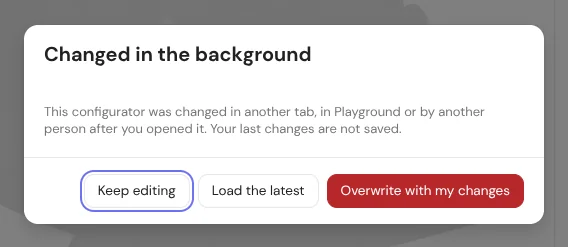
| Button | What it does |
|---|---|
| Keep editing | Closes the message and writes nothing. The next change asks again. |
| Load the latest | Drops your last changes and opens the configurator as it is now. |
| Overwrite with my changes | Saves your version over the other version. The other changes are lost. |
Open each configurator in one tab only. After you change something in Playground, select Load the latest in the editor. Refer to Changed in the background.
Settings
Manage → Settings sets how the configurator looks and how its codes are made.
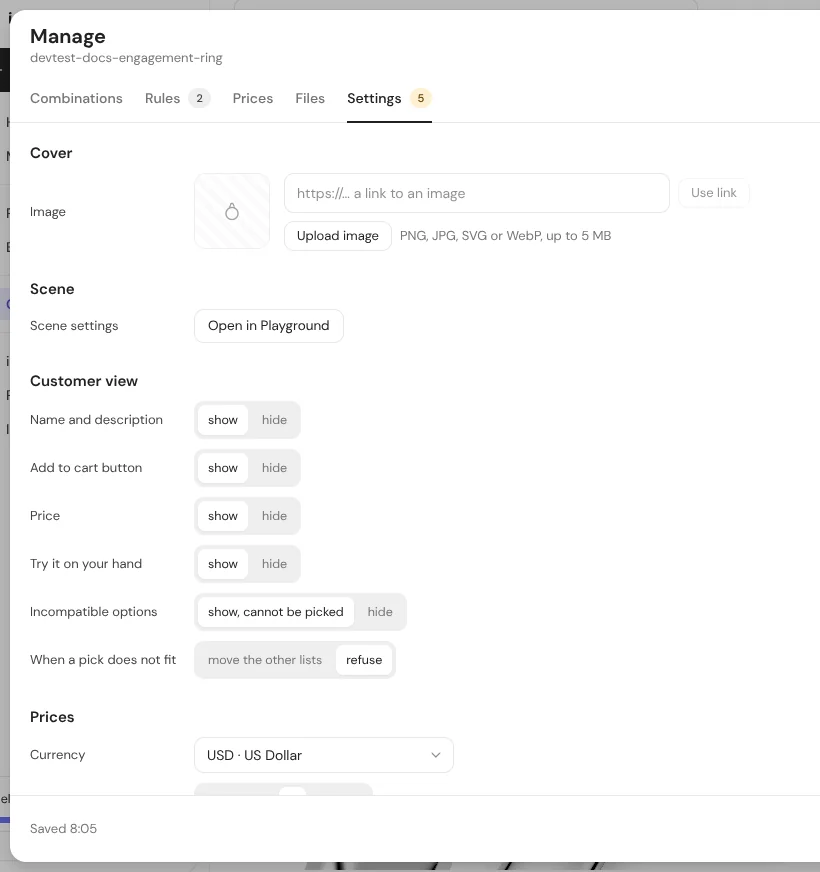
| Group | Setting | What it does |
|---|---|---|
| Cover | Image | The picture of the configurator in your files and in its embed. Upload an image (PNG, JPG, SVG or WebP, up to 5 MB), or paste a link to an image and select Use link. |
| Scene | Scene settings | Open in Playground to change the light, the background, the camera and the materials. |
| Customer view | Name and description | Show or hide the title and the line under it. |
| Add to cart button | Show or hide the button. | |
| Price | Show or hide the price. | |
| Try it on your hand | Show or hide the Try-On button. | |
| Incompatible options | show, cannot be picked, or hide. Refer to Rules. | |
| When a pick does not fit | move the other lists, or refuse. | |
| Prices | Currency, decimals, price breakdown | Refer to Prices. |
| SKU codes | The form of the codes | Refer to Prices. |
| File names | The names that the 3D files must have | Refer to Your own 3D models. |
You can also change the cover from the card: ⋯ → Change cover.
Published versions
Each publish is a new version of the configurator. The editor has no button yet to bring an older version back. Refer to About the beta.