
The configurator editor
A tour of the editor, with the toolbar, the 3D view, the options panel, the combination bar and the Manage window.
The editor shows your configurator as your customer will see it: the 3D view on the left and the options panel on the right. You change the panel in place, with the pencils and the Add new tiles.
To open the editor, select Edit on the card of a configurator. As an alternative, open its folder in My Drive and select Edit configurator.
The toolbar

| # | Control | What it does |
|---|---|---|
| 1 | Back | Saves your last changes, publishes them and goes back to the list. |
| 2 | Name | Opens the Name dialog: the Title and the Line under the title. |
| 3 | Combinations | How many combinations your customers can build. "with materials" also counts each metal and stone. |
| 4 | Undo and Redo | Go back or forward one change. |
| 5 | Open in Playground | Publishes, then opens the scene in Playground in a new tab: light, background, camera and materials. |
| 6 | Hide edits | Shows the panel as your customer sees it. Select it again to edit. |
| 7 | Manage | Opens the Manage window: combinations, rules, prices, files and settings. |
| 8 | Embed | Publishes, then opens the link and the ways to add it to your website. |
The screen
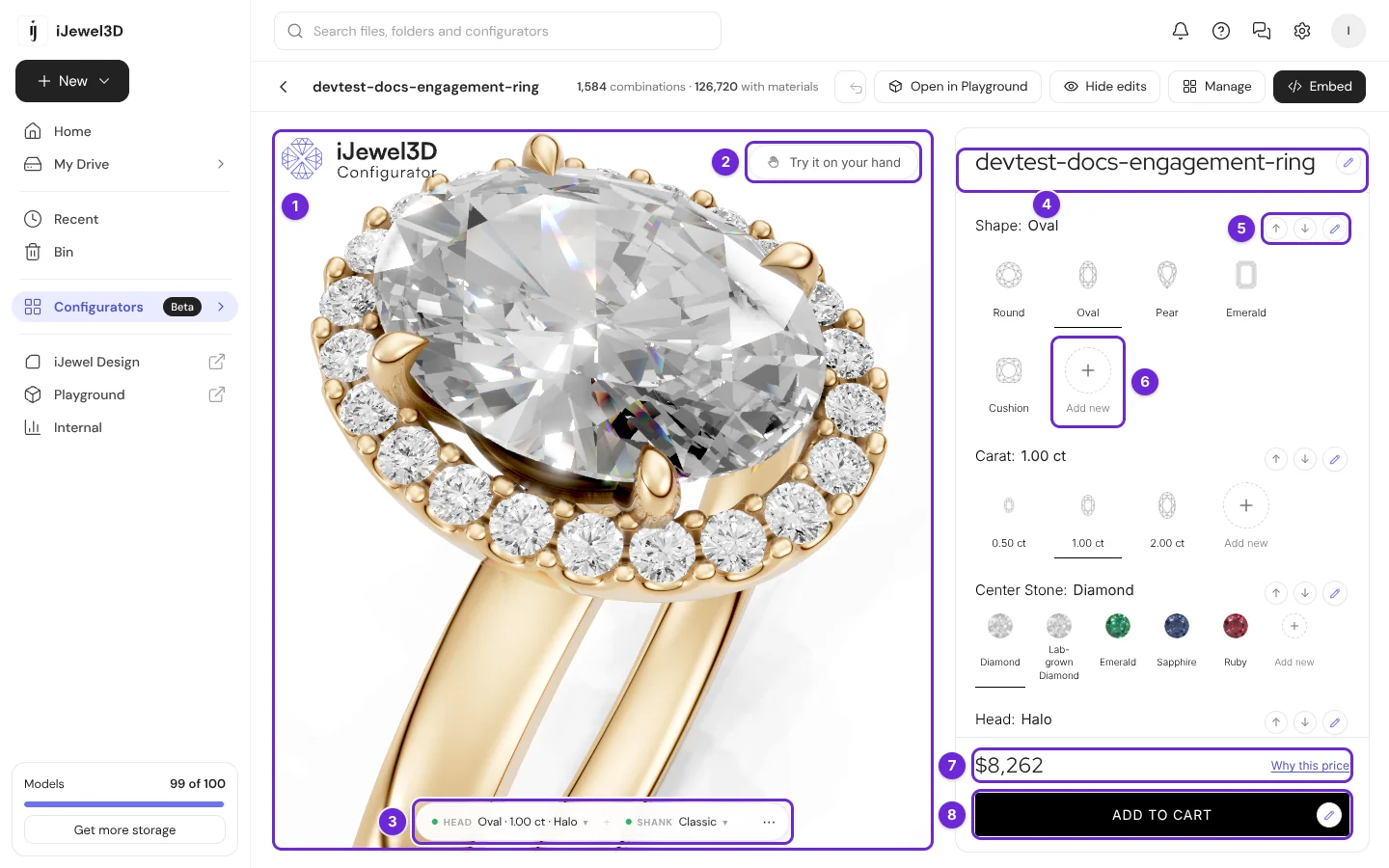
| # | Area | What it does |
|---|---|---|
| 1 | 3D view | Shows the combination that is picked in the panel. Drag to turn it. Scroll or pinch to zoom. |
| 2 | Try it on your hand | The Try-On button of your customer. Hide it in Manage → Settings. |
| 3 | Combination bar | One button for each part, with the options that make it. Select a part to see its 3D file. |
| 4 | Title | The name and the line under it. The pencil opens the Name dialog. |
| 5 | A list | The arrows move the list up or down. The pencil edits the list. |
| 6 | Add new | Adds options to this list. Refer to Options and lists. |
| 7 | Price | The price of the picked combination. Why this price shows how it was made. |
| 8 | Add to cart | The button of your customer. Its pencil changes the button text. |
Below the last list, + Add list adds a list.
The combination bar
The bar at the bottom of the 3D view shows each part of the picked combination, for example HEAD Round · 0.50 ct · 4 Prong and SHANK Classic. Select a part to open its menu.
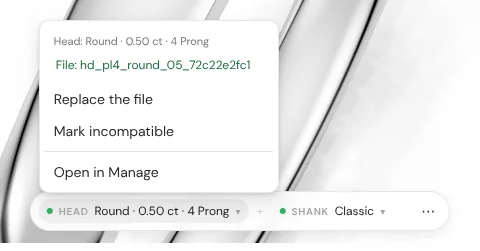
| Menu item | What it does |
|---|---|
| File | The 3D file that shows for this part. A missing file shows in red, with the file name that it waits for. |
| Replace the file or Add a file | Pick a library model or upload your own. Refer to Your own 3D models. |
| Mark incompatible | Your customers cannot pick this combination. The editor writes a rule for it in Manage → Rules. |
| Open in Manage | Opens the Manage window. |
The ⋯ button at the right end has the same choices for the whole combination.
Edit mode and preview
| Mode | How to get it | What you see |
|---|---|---|
| Edit | The default | Pencils, arrows and Add new tiles. You can pick any option, also one that a rule blocks. |
| Preview | Select Hide edits | The panel of your customer. The rules apply. Add to cart shows the order that your website receives. |
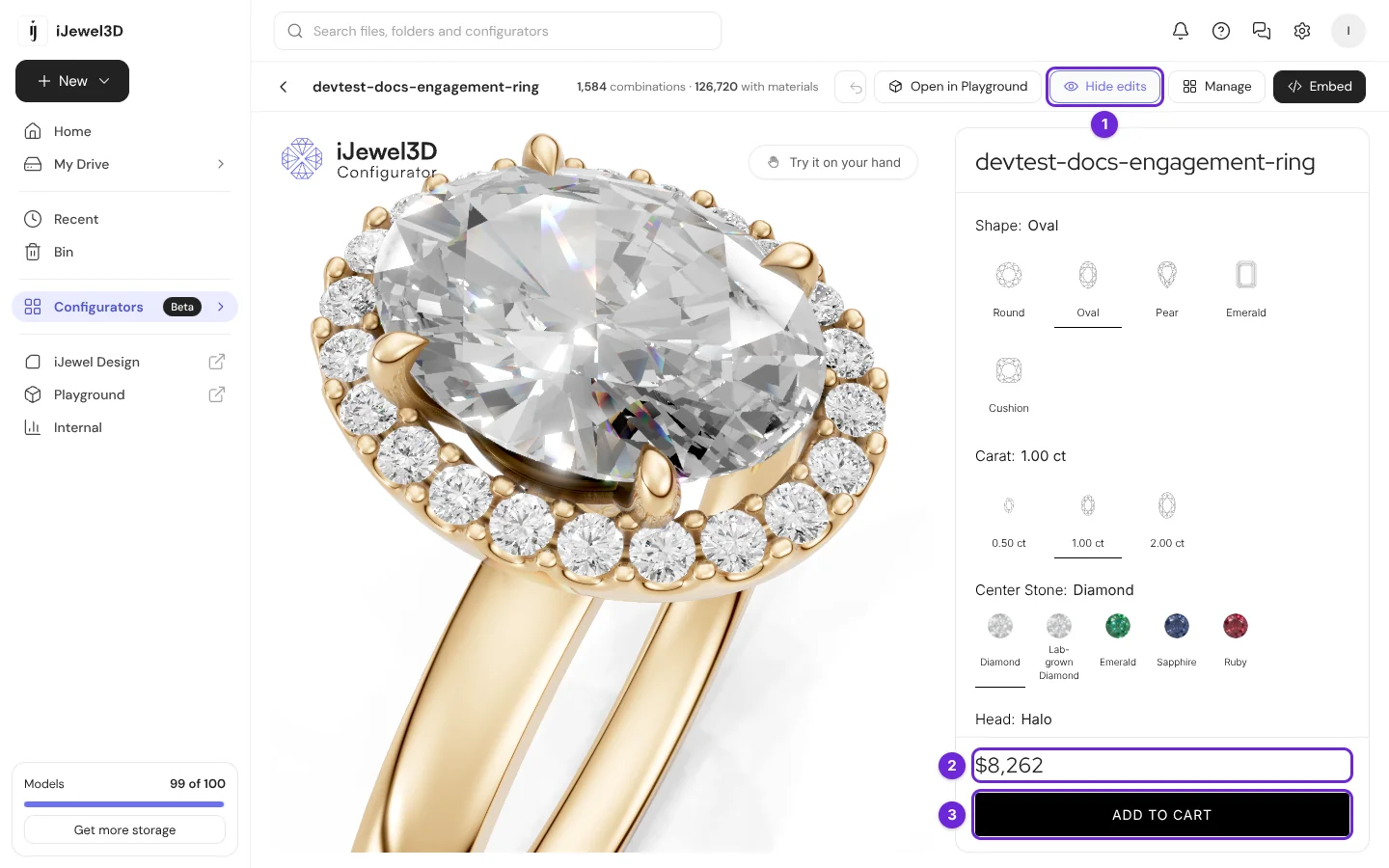
In the preview, Add to cart says "Added to Cart" for two seconds. The Order window then shows the parts, their codes and the price.
Prices in edit mode
In edit mode, a price can show for a combination that a rule blocks. Use Hide edits to see what a customer can buy.
The Manage window
Select Manage to open one window for the whole configurator.
| Tab | What you do there | Page |
|---|---|---|
| Combinations | See which combinations are allowed, in a table. Block or allow them. | Rules |
| Rules | Write rules: not allowed, add a price, use another model. | Rules |
| Prices | Set prices by part, by material, per SKU, or with a price model. | Prices |
| Files | Upload your 3D files and match them to the options. | Your own 3D models |
| Settings | Cover, scene, what the customer sees, currency, SKU codes and file names. | Preview, save and publish |
The bottom of the window shows the save status, for example "Saved 10:42", and how many files come from the library and how many you uploaded. Undo and Redo are at the top right. Select Done to close the window.
When you cannot edit
A note below the toolbar tells you why the editor is read-only.
| Note | Cause | What to do |
|---|---|---|
| "This configurator is locked." | The folder is locked in My Drive. | Unlock the folder in My Drive. |
| "You can view this configurator." | Your role in this workspace is Viewer. | Ask an editor of the workspace. |
| "Made with the old editor." | It was made with the old Ring Configurator. | Open it in Playground to change it. |
| "The setup could not be read." | The editor could not load it. | Reload the page. |