
Prices
Set the price of each combination by part, by material, per SKU or with a price model, and choose how customers see it.
The configurator shows a price for each combination. You set the prices in Manage → Prices. You can type a price for each option, attach a fixed price to a SKU, or build a price model from metal weights, stone prices and labor.
The template prices are examples
A configurator made from a template comes with example prices in USD. They are not market prices. The example prices tag shows until you change a price. Set your own prices before you share the configurator.
Your costs stay private
Your customers see the price, and the public lines of the price if you choose to show them. Your tables, inputs, costs, margins and private lines are not published with the configurator. iJewel works out each price on its server and sends only the answer to the customer's page.
The Prices tab
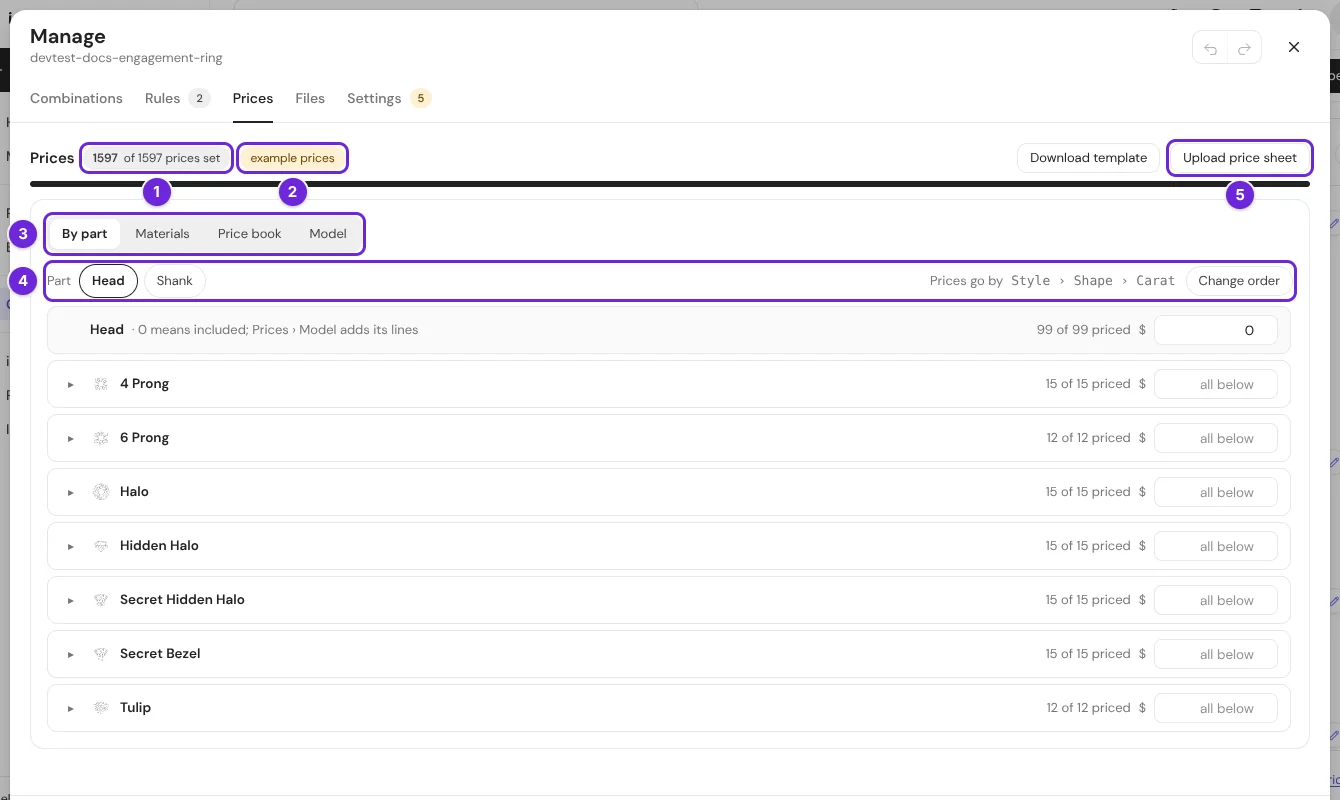
| # | What it is |
|---|---|
| 1 | How many prices are set. |
| 2 | example prices: the template prices. Change a price to set your own. |
| 3 | The four views: By part, Materials, Price book and Model. |
| 4 | The part, and the order of its price levels. Change order changes the order. |
| 5 | Download template and Upload price sheet: fill in the prices in a spreadsheet. |
| View | What you price | Use it when |
|---|---|---|
| By part | Each model of each part. | You have a price for each head and each shank. |
| Materials | Each metal and stone, on top of the model price. | A metal or a stone adds a fixed amount. |
| Price book | Each full combination, with its SKU. | You have one price per SKU, for example from your stock system. |
| Model | Lines that read tables and inputs. | You price by metal weight, carat and labor. |
The views add up in this order: By part, then Materials, then the lines of the Model. A fixed price in the Price book replaces the sum of By part and Materials for its SKU.
Price by part
- Select By part.
- Select a part, for example Head.
- Type a price on a row. A price on a group row, for example Halo, goes to all the rows below it that have no price of their own. Select the arrow of a row to open it.
All 3 steps are done.
0 means that the price is included. The line "Prices go by Style › Shape › Carat" gives the order of the levels. Select Change order to change it.
Price the materials
Each metal and stone adds its price on top of the model price of its part. Type one price per option. With Price depends on and + List, a material can have a price for each carat, shape or style.
Below the materials, Adjustments run after the option prices, in their order. An adjustment adds, sets or multiplies an amount, or makes the price on request, when its condition holds. For example: when Shape is Oval, add 150. Line shoppers read is the text that shows in the price lines.
The price book
The price book has one line for each combination that a customer can buy, with its SKU code. The line shows the sum of the part and material prices.
- Type a price on a line to fix the price of that SKU.
- Clear the price to go back to the sum.
- Select Why this price on a line to see how its price was made.
- Select Download price book to get all the lines in a spreadsheet.
The price model
Select Model to build prices the way a jeweler works them out: metal weight × price per gram, carat × price per carat, plus labor and a margin.
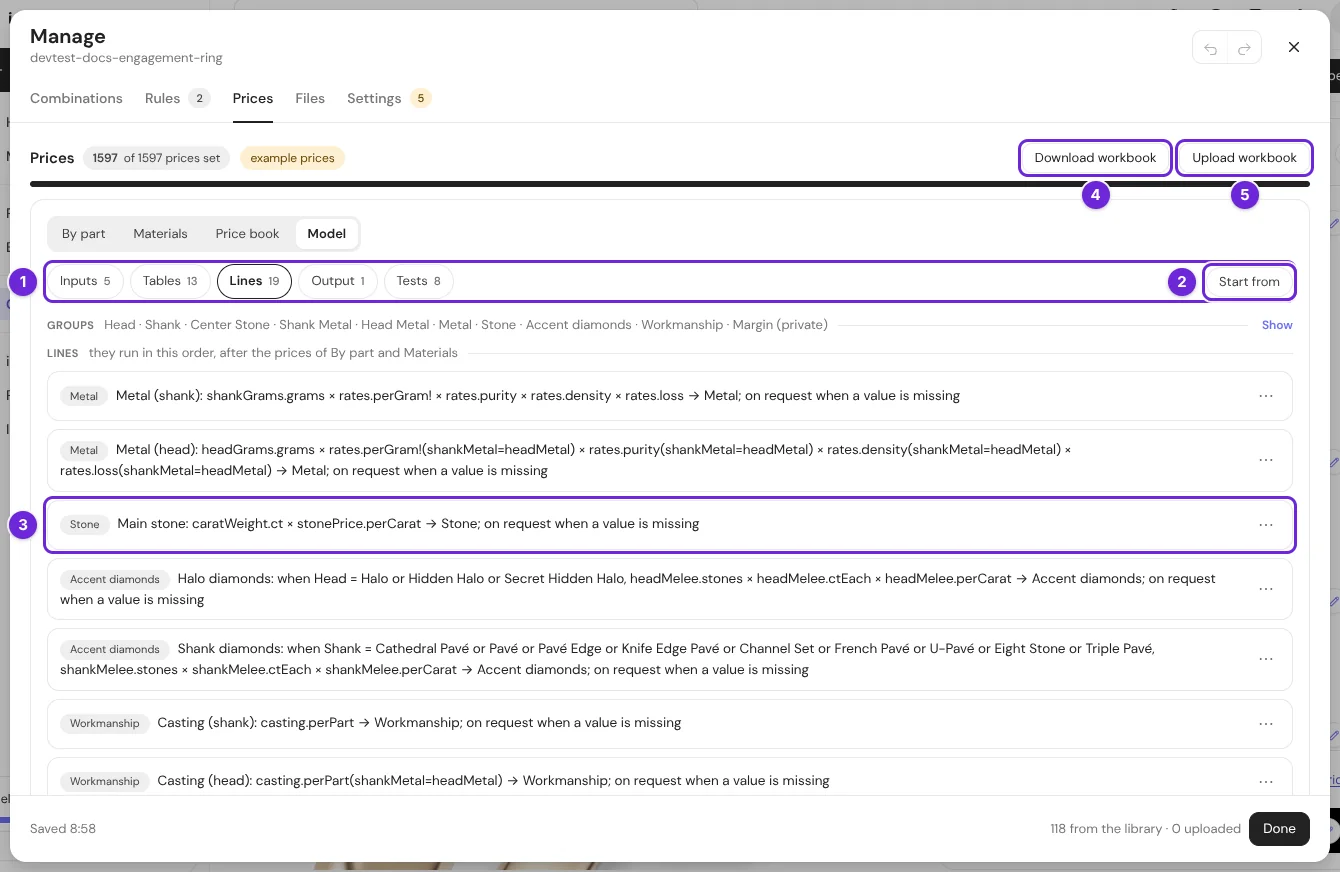
| # | What it is |
|---|---|
| 1 | The parts of the model: Inputs, Tables, Lines, Output and Tests. The number tells how many each has. |
| 2 | Start from writes a ready model that you then change. Your prices do not change until you type one. |
| 3 | One line of the model: its group, its name and what it works out. |
| 4 | Download workbook: the whole model as an Excel file or as CSV files. |
| 5 | Upload workbook reads your changed workbook back. |
| Part | What it holds | Example |
|---|---|---|
| Inputs | Named values that the lines read. | Gold price per gram: 140.00 |
| Tables | Values for each option of one or more lists. | Grams of metal for each head and carat |
| Lines | What adds up to the price. A line multiplies values from tables and inputs, and can have a condition. | Metal (head): grams × price per gram × purity |
| Output | How the total ends. | Round to 1, ends in 99, a minimum, on request above an amount |
| Tests | Combinations with the price that you expect. | Round · 0.50 ct · 4 Prong in white gold costs 2,677 |
Start from offers: Per option (By part and Materials), Metal by weight, Stone grid, Labour per head, Markup and rounding and ERP price per SKU.
Inputs
Each input has a type (money, number, text or yes or no) and a source.
| Source | What it is |
|---|---|
| fixed | The value that you type. |
| feed | A live value, for example a metal price. In the beta, a feed uses its fallback value. |
| shop | A value that your website sends. Ask your developer before you use it. |
Lines
Each line has a name that shoppers can read, a group (for example Metal or Stone), and what it does: amount, multiply, set, factor on or on request. A missing value tells what happens when a table has no value for the combination: on request, error, or skip the line.
A group is shown to shoppers or private. Put your margin and your costs in a private group. A private line never shows in the price lines of your customers.
Tests
A test is a combination with the total that you expect. The editor checks each test after each change.
- Select + Test to add a test for the options picked in the panel. Type the total that you expect.
- On a test, select Use what is selected to give it the options that are picked in the panel now.
- A failing test is marked, with the price that the model gave ("got").
A failing test holds the publish
While a test fails, your changes are saved but not published. The save status says "The last save kept the older version" and names the test. Your customers keep the last published prices. Correct the price or the test, then publish again.
Prices in a spreadsheet
| Where | Download | Upload |
|---|---|---|
| By part and Materials | Download template: CSV or Excel (.xlsx) | Upload price sheet |
| Price book | Download price book | Upload price sheet |
| Model | Download workbook: Excel (.xlsx) or CSV files (.zip), one sheet for each part of the model | Upload workbook |
After the upload of a workbook, a report shows each sheet and each cell that has a problem. A workbook with an error changes nothing.
Why this price
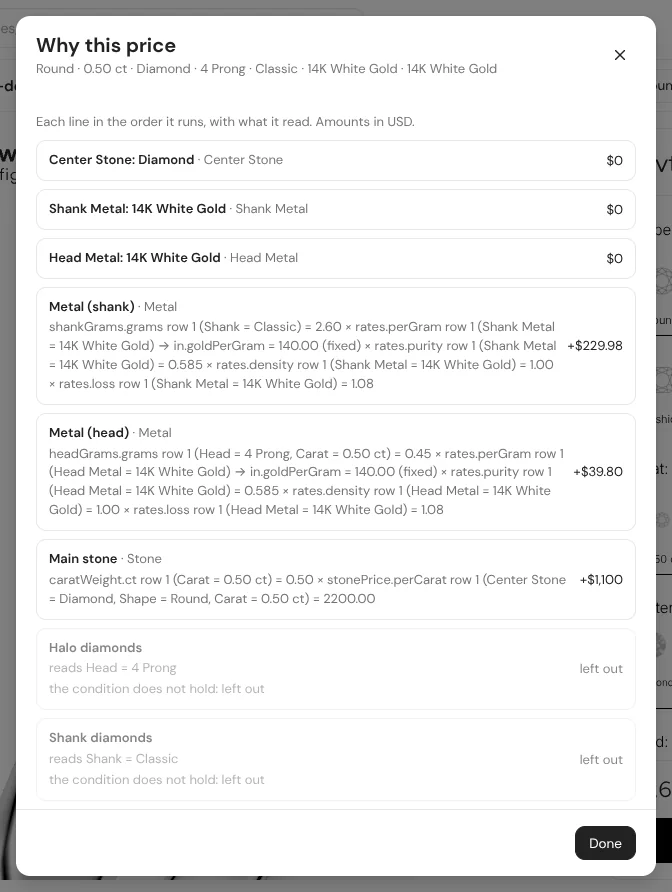
Select Why this price below the price in the panel. The dialog lists each line in the order it runs, with the values that it read, and the total. A line that does not apply to this combination shows "left out". You also find Why this price on each line of the Price book, and in the Combinations tab.
How the price shows
In Manage → Settings → Prices:
| Setting | What it does |
|---|---|
| Currency | The currency of all your prices. The numbers are not converted. |
| Decimals | How many decimals the price shows. Example shows the result. |
| Price breakdown | total only, or total and lines: customers can select Show price breakdown to see the lines of the price. |
To hide the price for your customers, turn off Price in Manage → Settings → Customer view.
SKU codes
Each option has a short code, for example ROU for Round. The SKU code of a combination is made from the codes of its options. Your website receives it with the order. Set the form in Manage → Settings → SKU codes.
| Setting | Choices |
|---|---|
| Inside a part | The sign between the codes of one part: dash -, underscore _ or nothing. |
| Between parts | The sign between the parts. |
| Materials | not in the code, or at the end. |
| Letters | UPPERCASE, lowercase or as typed. |
| Order | The order of the lists in the code. Select Change order. |
Example shows the SKU code of one combination, for example ROU-05CT-4PR_CLA. To change the code of one option, open the pencil of its list and type the SKU code.
Prices on your own website
Prices show on the iJewel link and in the embed with no setup. If your website runs the configurator on its own domain, register your shop's domain so that your site can show the prices. Refer to Add it to your website.