
Add it to your website
Make a configurator public, copy its link, and put it on your product page in one of three ways.
A new configurator is private: only people who are signed in to your workspace can open it. To show it to your customers, make it public. Then send the link, or put the configurator on your product page.
Before you start
- Your customers see the published version. The Embed button of the editor publishes your last changes first. Refer to Preview, save and publish.
- A link that you copied on beta.ijewel3d.com before the release still works. For the ijewel3d.com address, copy the link again here. Refer to About the beta.
Open the dialog
- In the editor, select Embed in the toolbar. This also publishes your last changes.
- In the list of configurators, select ⋯ on the card, then Share & embed.
The dialog Add name to your website opens. At the top, Ready for your shop shows what is done and what you must still do.
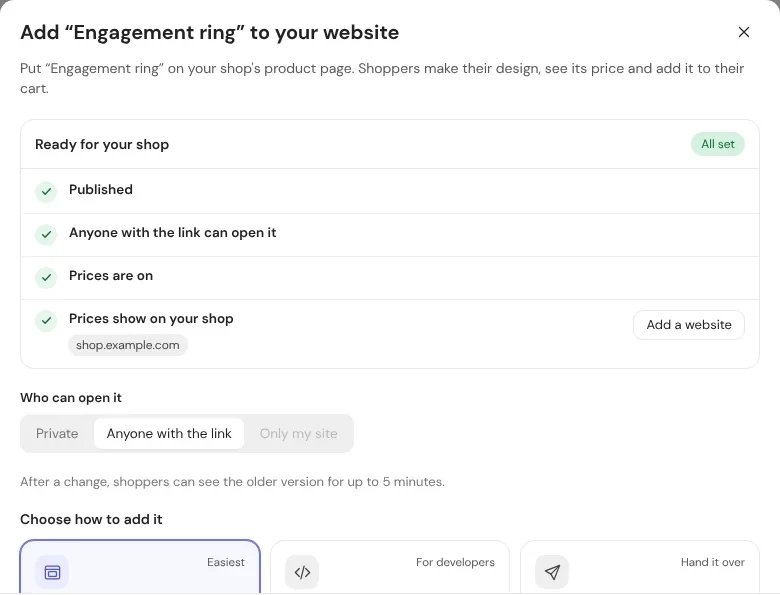
| Line | When it is done | What to do if it is not done |
|---|---|---|
| Published | Shoppers see the version that you published last. | Select Publish, or Open the editor from the list. |
| Anyone with the link can open it | Shoppers need no sign-in. | Select Make it public. |
| Prices are on | Shoppers see the price of each design they make. | No prices yet: add prices, then publish again. Prices are not live: publish again. |
| Prices show on your shop | The websites that get prices are listed. | Select Add a website to register your shop's domain. Refer to Prices on your own website. |
Make it public
- Below Who can open it, select Anyone with the link.
- Wait. The dialog says "Making the configurator and every file in it public: its models, icons and materials. Its prices stay private…"
- The Link shows.
All 3 steps are done.
Only my site is not available in the beta. To make it private again, select Private. The link then asks for a sign-in. The public version can still open for up to 5 minutes.
Share the link
Copy the Link and send it by email or chat, or put it behind a button on your website. The link opens the configurator on a page of its own. Your customer needs no account.
After a change, shoppers can see the older version for up to 5 minutes.
Choose how to add it
Below Choose how to add it, select one of three ways. Each way shows its steps, with the code filled in for this configurator and a Copy button.
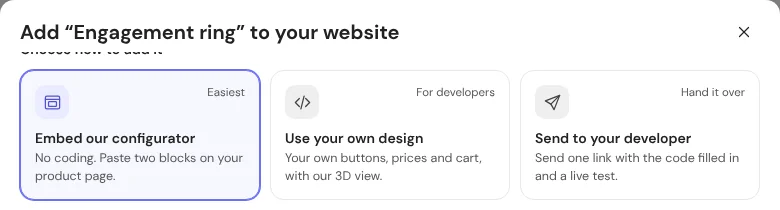
| Way | Tag | What it gives | Who does it |
|---|---|---|---|
| Embed our configurator | Easiest | Our 3D view, the choices, the price and Add to cart on your product page. You paste two blocks. | You, with no coding |
| Use your own design | For developers | Your own buttons, prices and cart, with our 3D view. | Your developer |
| Send to your developer | Hand it over | One link to a developer page with the code filled in, a live test and the checks for the cart. | You send it, your developer does it |
Embed our configurator
- Copy the first block, Paste the configurator on your product page. It is an
iframe. Paste it where the configurator goes on your product page. - Copy the second block, Paste this once on the same page. When a shopper selects Add to cart, your page gets the design that they made. Add it to your cart where the comment in the code says.
- Select Try it here to test the configurator and see what your page gets, before you paste anything.
All 3 steps are done.
Most shop systems (Shopify, WooCommerce, Wix and others) have a block for custom HTML. Paste the code there. The prices show in the embed with no domain setup.
Use your own design
The steps load the iJewel configurator SDK, paste a configurator with a list for each choice, the price, Add to cart and our 3D view, and check each cart line on your server. Give these steps to your developer. Refer to Add a configurator to your website (developers).
Send to your developer
- Copy the link of the developer page. It has the code filled in for this configurator, a live test and the checks for the cart. It needs no sign-in.
- Copy the message and paste it into an email or a chat to your developer.
- If your developer asks for them, copy the values: the workspace, the configurator id and the SDK address.
All 3 steps are done.
Select Developer page at the bottom of the dialog to open that page yourself.
Prices on your own website
The price of each combination comes from iJewel's price service. The prices show on:
- the iJewel link and the embed, with no setup;
- the website domains that are registered and live in your settings when you publish.
The embed needs no domain: it shows the iJewel page inside yours. If your website runs the configurator on its own domain (the Use your own design way), register your shop's domain so that your site can show the prices.
- In the dialog, select Add a website. As an alternative, open Settings → Apps, embed and API → Domains.
- Select Add domain and add your shop's domain, for example
shop.example.com. Wait until its status shows Live. - Open the configurator and select Back to publish again.
All 3 steps are done.
Publish after you add a domain
Each publish takes the list of your registered domains at that time. A domain that you add later shows prices after the next publish. The domain must use https.
The card menu
The ⋯ menu on the card of a configurator has these items. You can also right-click a card.
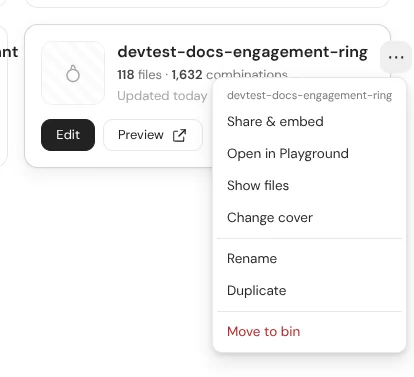
| Menu item | What it does |
|---|---|
| Share & embed | Opens the dialog of this page. |
| Open in Playground | Opens the scene in Playground. |
| Show files | Opens the folder of the configurator in My Drive. |
| Change cover | Sets the picture of the card and of the embed. |
| Rename | Changes the name. |
| Duplicate | Makes a private copy next to it, with the name "name copy". |
| Move to bin | Moves the configurator to the Bin with its rules, prices and file matches. You can restore it from the Bin. |
A configurator in the Bin
A configurator in the Bin does not open on its link or on your website until you restore it.