
Rules
Block combinations that you do not make, add a price, or show another model, and choose what customers see.
A rule changes what happens for some combinations. Each rule reads as one sentence: When these options are picked, then this happens.
| Rule | What it does | Example |
|---|---|---|
| incompatible | Your customers cannot pick this combination. The option is grey, with your reason. | When Shape is Emerald and Head is Tulip, then incompatible: "The tulip head is made for round and oval stones." |
| add price | Adds an amount to the price. | When Head Metal is Platinum, then add price 100. |
| use another model | Shows the 3D file of another combination. | When Shank is Classic Round, then use the model of Shank Classic. |
With no rules, every combination is allowed. The templates come with some rules. For example, the Engagement ring template does not allow a pear stone in a six-prong head.
Write a rule
- Select Manage, then the Rules tab.
- In the builder, select + condition. A condition reads list = options.
- Select the list name to choose another list. Select the options to tick one or more of them. The rule covers each ticked option.
- Select + condition again to add another list. Select and to change it to or when you need it.
- After then, select incompatible, add price or use another model.
- For incompatible, type the reason that your customer reads. For add price, type the amount. For use another model, choose the combination whose model shows.
- Read the line Reads as. It tells you what the rule does, in words.
- Select Add rule. The message "Rule added" shows.
All 8 steps are done.
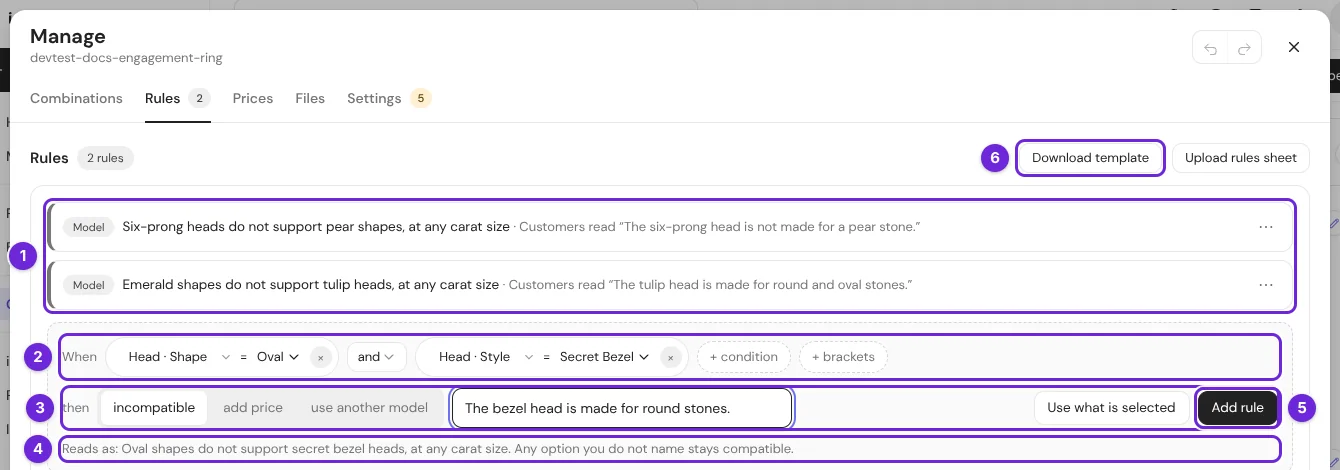
| # | What it is |
|---|---|
| 1 | The rules of this configurator, each as a sentence. "Customers read" shows the reason. |
| 2 | When: the conditions. Each one is a list and the options that it covers. |
| 3 | then: what happens, and the reason or the amount. |
| 4 | Reads as: the rule in words. Check it before you add the rule. |
| 5 | Add rule. |
| 6 | Download template and Upload rules sheet: write many rules in a spreadsheet. |
Use what is selected
Pick the options in the panel first. Then select Use what is selected in the builder: it fills the When line from the panel.
The reason is public
Your customers read the reason, and it is part of the published configurator. Do not put costs or notes for your team in it. It can have up to 120 characters.
When a rule has and and or, "and" is worked out before "or". Select + brackets to put brackets around the conditions that belong together.
What your customers see
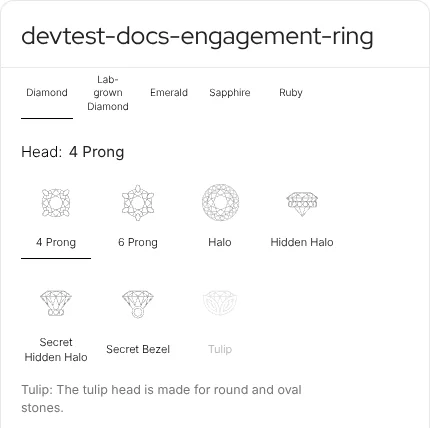
With an emerald shape picked, the Tulip head is grey. The reason shows below the row, and on the option when the customer points at it.
Two settings in Manage → Settings → Customer view change this.
| Setting | Choices |
|---|---|
| Incompatible options | show, cannot be picked: the option is grey. hide: the option does not show. |
| When a pick does not fit | refuse: the customer cannot pick it. move the other lists: the pick is taken, and the other lists move to options that fit. A message tells what changed, for example "Head changed to Halo." |
Change a rule
Select the ⋯ of a rule.
| Menu item | What it does |
|---|---|
| Edit | Opens the rule in the builder. Select Save rule. |
| Disable | The rule stays in the list but does nothing. Enable turns it on again. |
| Duplicate | Copies the rule into the builder. Change it and select Add rule. |
| Delete | Removes the rule. Undo brings it back. |
The tag before each rule tells its kind: Model (it names lists of parts), Material (it names a material list) or Fitting rule (use another model).
Use another model
A use another model rule shows the file of another combination. Use it when one 3D file can stand for more than one combination, or to fill a gap until you have the correct file.
- Write the When line: the combinations that have no file of their own.
- Select use another model.
- After of, select + list and choose the option whose model shows.
- Select Add rule.
All 4 steps are done.
In Manage → Files, the boxes that the rule covers show the tag Used by a fitting. They need no file of their own.
Block one combination from the 3D view
- In the panel, pick the combination.
- In the combination bar below the 3D view, select a part, or select ⋯ for the whole combination.
- Select Mark incompatible.
All 3 steps are done.
The editor writes the rule for you, in Manage → Rules. To allow the combination again, select Mark compatible again in the same menu.
The Combinations tab
Manage → Combinations shows your combinations in a table. Choose a list for the Rows and a list for the Columns.
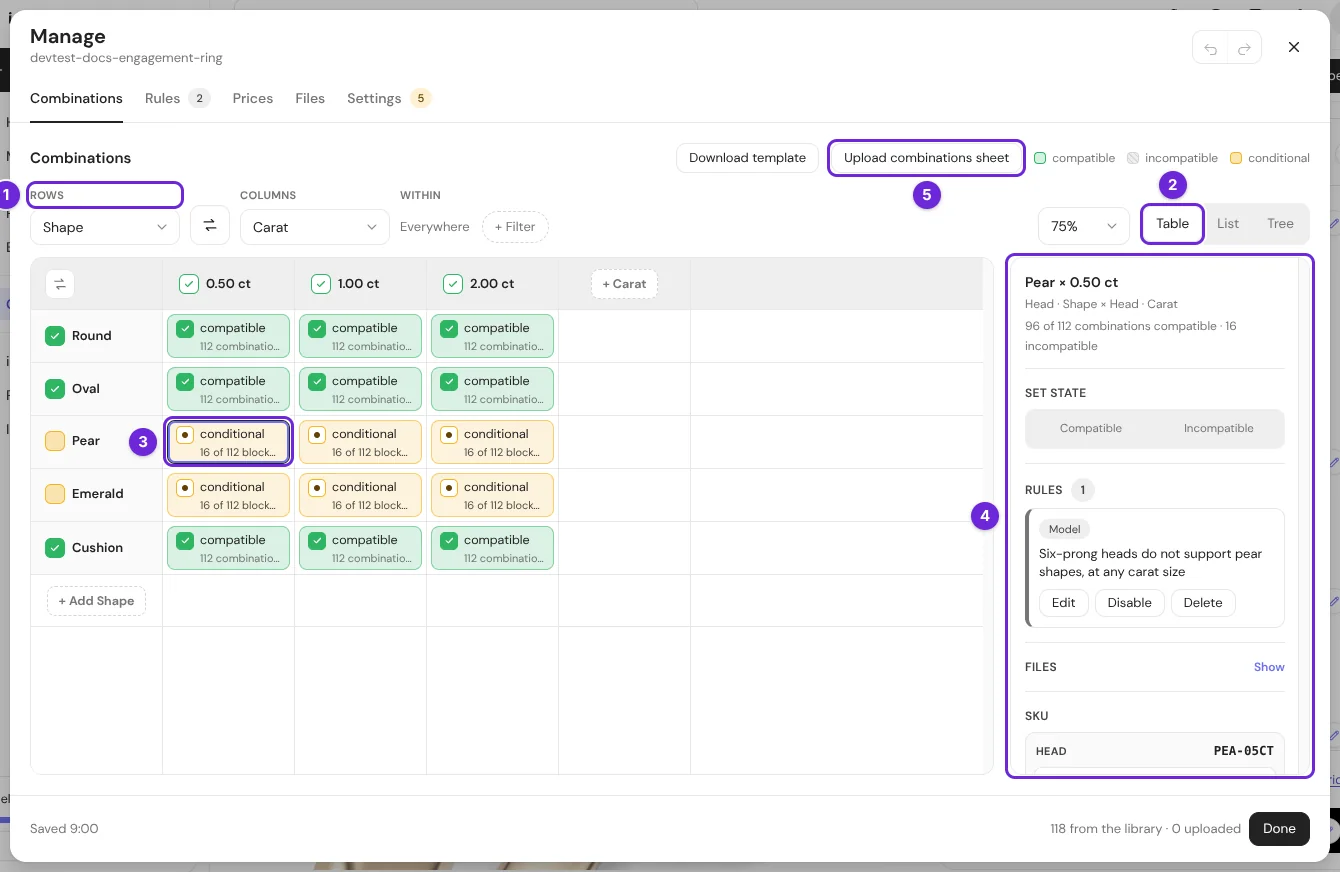
| # | What it is |
|---|---|
| 1 | Rows and Columns: the two lists of the table. Within and + Filter limit the table to some options of other lists. |
| 2 | Table, List or Tree: three ways to show the combinations. |
| 3 | A cell. Green is compatible, grey is incompatible, yellow is conditional: a rule blocks some combinations of the cell. |
| 4 | The selected cell: how many combinations it has, Set state (Compatible or Incompatible), the rules that apply, the files and the SKU codes. |
| 5 | Download template and Upload combinations sheet: the table in a spreadsheet, with yes or no in each cell. |
Shift-select or Ctrl-select to select more than one cell.
Rules in a spreadsheet
- In Manage → Rules, select Download template. Choose CSV or Excel (.xlsx). The file has one row per rule: when, then, value.
- Add or change the rows in a spreadsheet program.
- Select Upload rules sheet and pick the file. The message tells you what it read.
All 3 steps are done.
The sheet replaces all the rules
The uploaded sheet is the full list of rules. A rule that is not in the sheet is removed. If you made a mistake, select Undo.
Limits
- A configurator can have up to 2,000 rules.
- One rule can cover up to 24 cases. Split a larger rule into smaller rules.