
iJewel3D plugin for WooCommerce
Install the iJewel3D plugin, sign in to your iJewel account, show your designs in 3D on WooCommerce products and sell your ring configurators. No code.
The iJewel3D plugin connects your WooCommerce store to your iJewel account. You do not edit your theme and you do not write code.
- 3D on your products. Pick a design from your iJewel account for a product. A 3D button shows on the product photo, and the 3D follows the metal and the stone that the shopper picks.
- Ring configurators that sell. Add an iJewel configurator to your store in one click. The shopper builds the ring in 3D, sees its price, and adds it to the cart. The cart, the checkout and the order show every choice and the ring's SKU.
- Many products at once. Match designs to many products in one step.
The plugin from start to end: add a configurator to the store, build a ring, check out, add 3D to a product, and match designs.
Before you start
You need:
- A WordPress site with WooCommerce, on https. The plugin works with classic themes and block themes, and with the classic and the block cart and checkout.
- An iJewel account with a password. If you signed up with Google, set a password first with Forgot password? on the sign-in page.
- Your designs in iJewel. Shoppers can open only designs and configurators that are shared as Anyone with the link.
Step 1: Install the plugin
- Download the plugin: ijewel3d.zip.
- In WordPress, open Plugins › Add Plugin › Upload Plugin.
- Select
ijewel3d.zip, then select Install Now and Activate.
All 3 steps are done.
INFO
The plugin is in review for the WordPress.org plugin directory as iJewel3D. After it is listed, you can also install it from Plugins › Add Plugin: search for iJewel3D. A copy that you installed from the zip gets the updates from WordPress.org too.
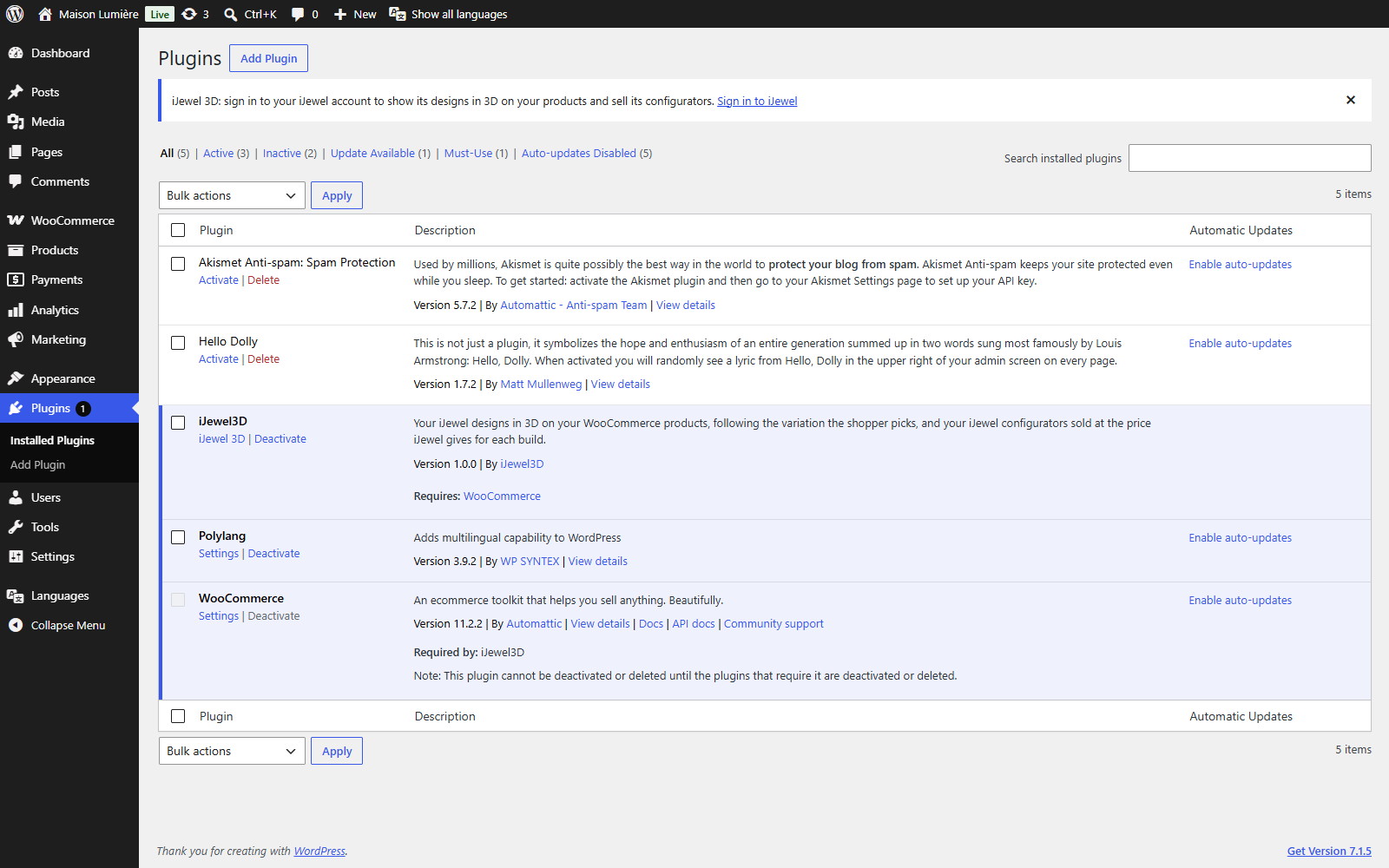
After you activate the plugin, a notice asks you to sign in to iJewel.
Step 2: Sign in to your iJewel account
- Open Products › iJewel 3D.
- Enter your iJewel email and password, then select Sign in.
The plugin adds your site's address to the domains of your iJewel account. This lets your configurators show their prices on your store.
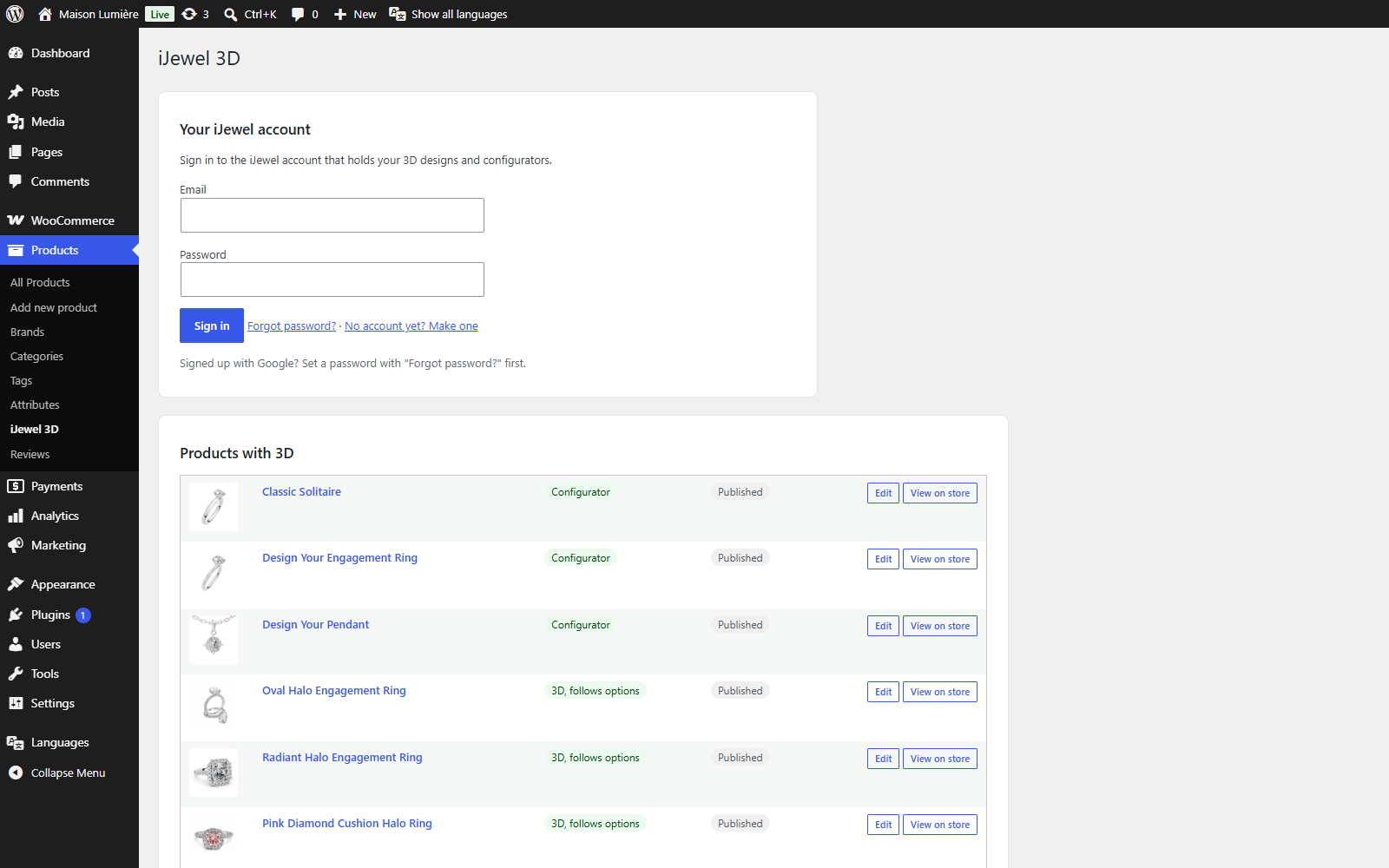
Your password is not kept. The browser keeps the sign-in until you select Sign out.
Step 3: Add 3D to a product
- Open a product, then the iJewel 3D tab under Product data.
- Select Choose a design and pick a design from your iJewel account.
- For a product with variations, check how each value matches a material of the design (for example, Yellow Gold to Gold). Most values match by name. Change a match if it is wrong.
- Select Update.
All 4 steps are done.
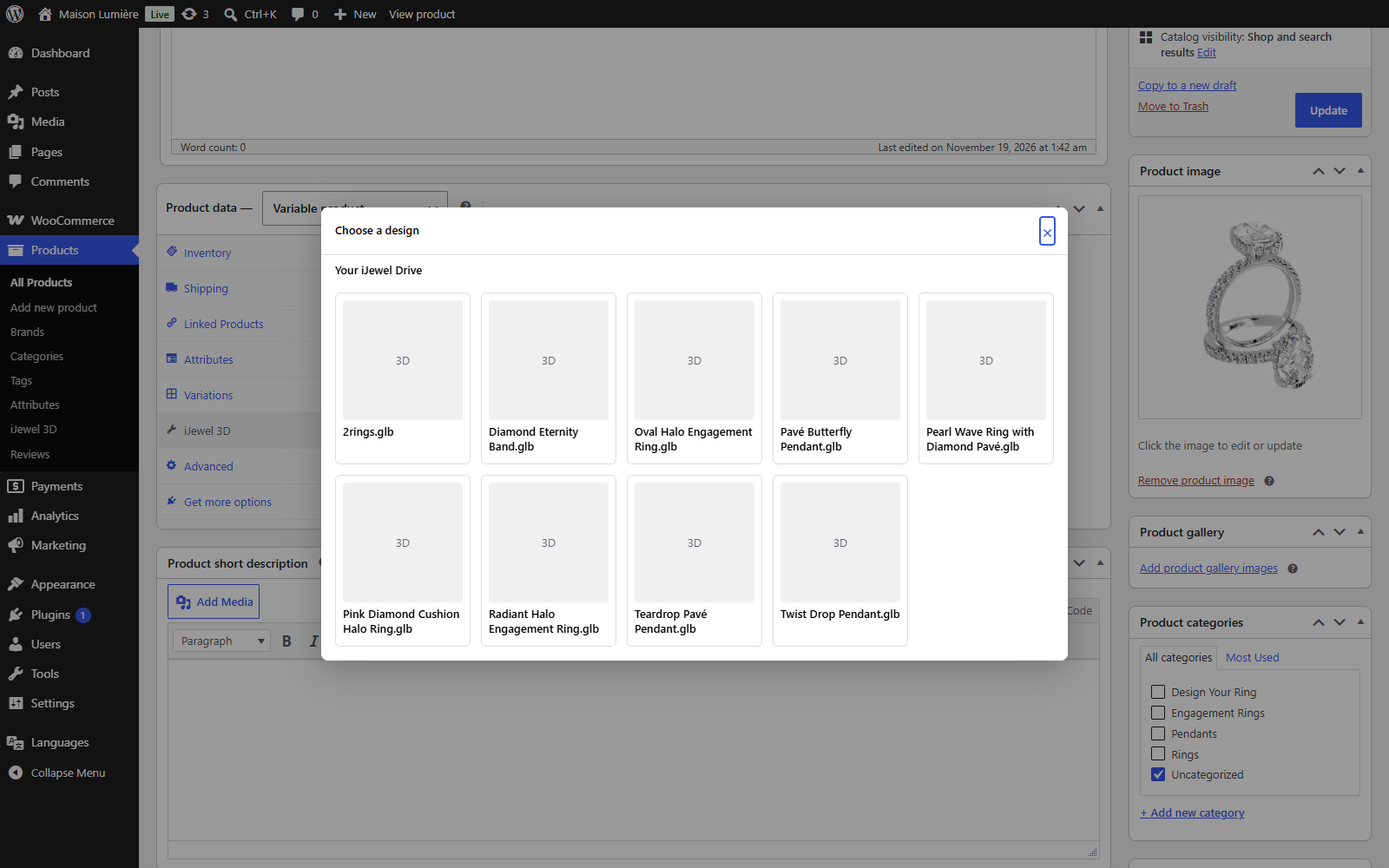
Choose a design: the designs and folders of your iJewel account.
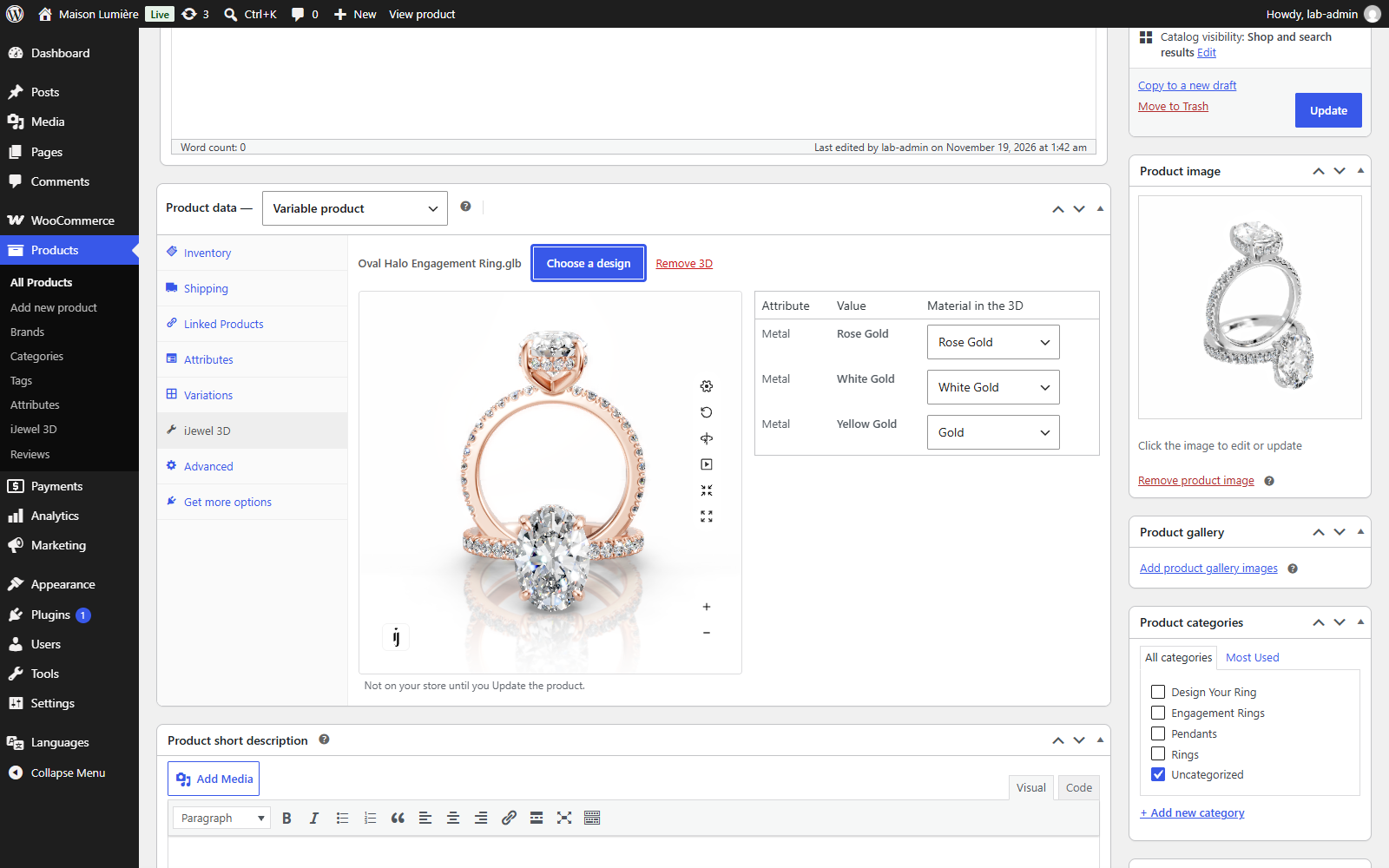
Each value of the product (Rose, White, Yellow) matches a material of the design.
On the product page, a 3D button shows over the main photo. The 3D opens over the photo, and on a phone it opens full screen. When the shopper picks another metal, the 3D changes with it.
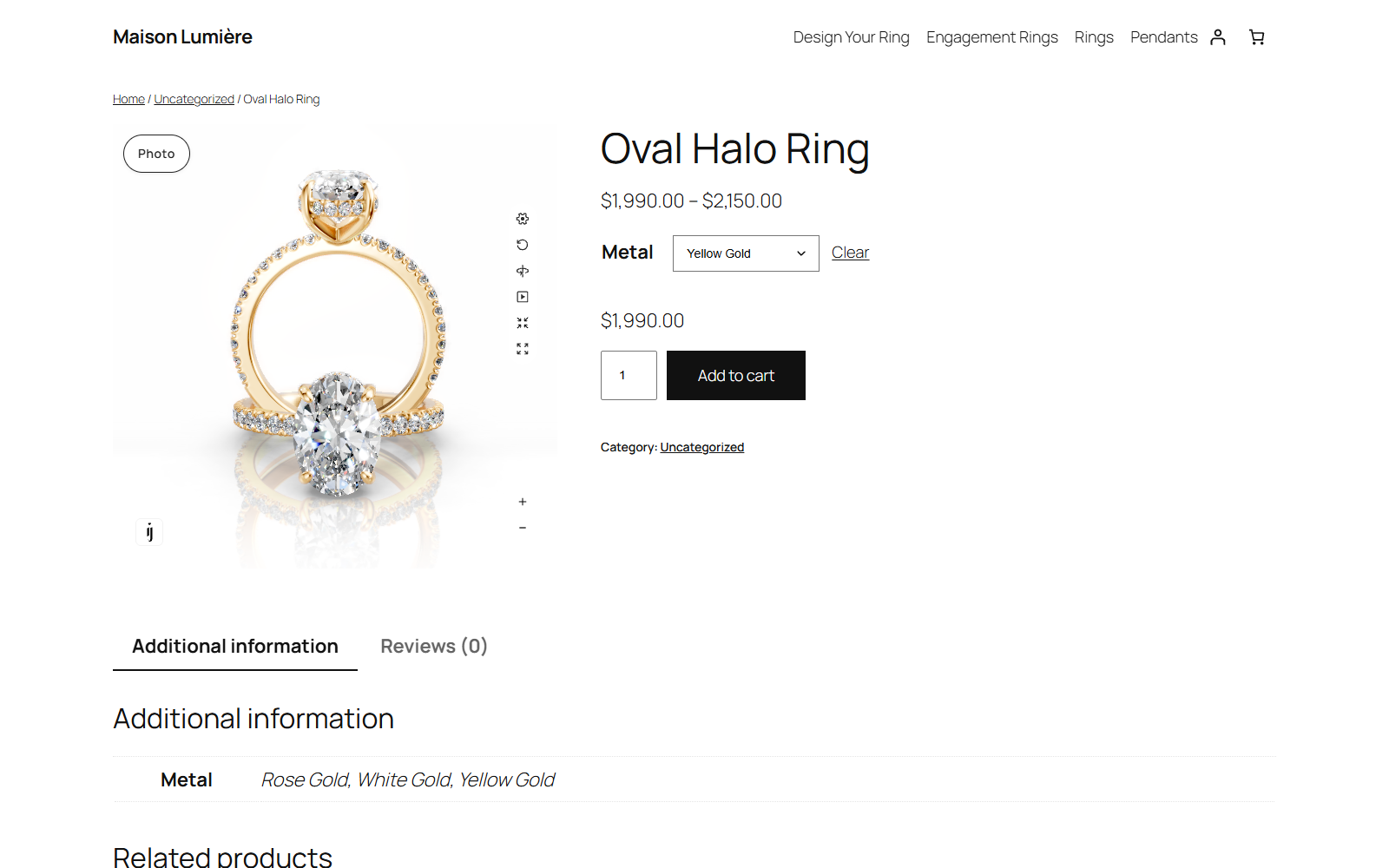
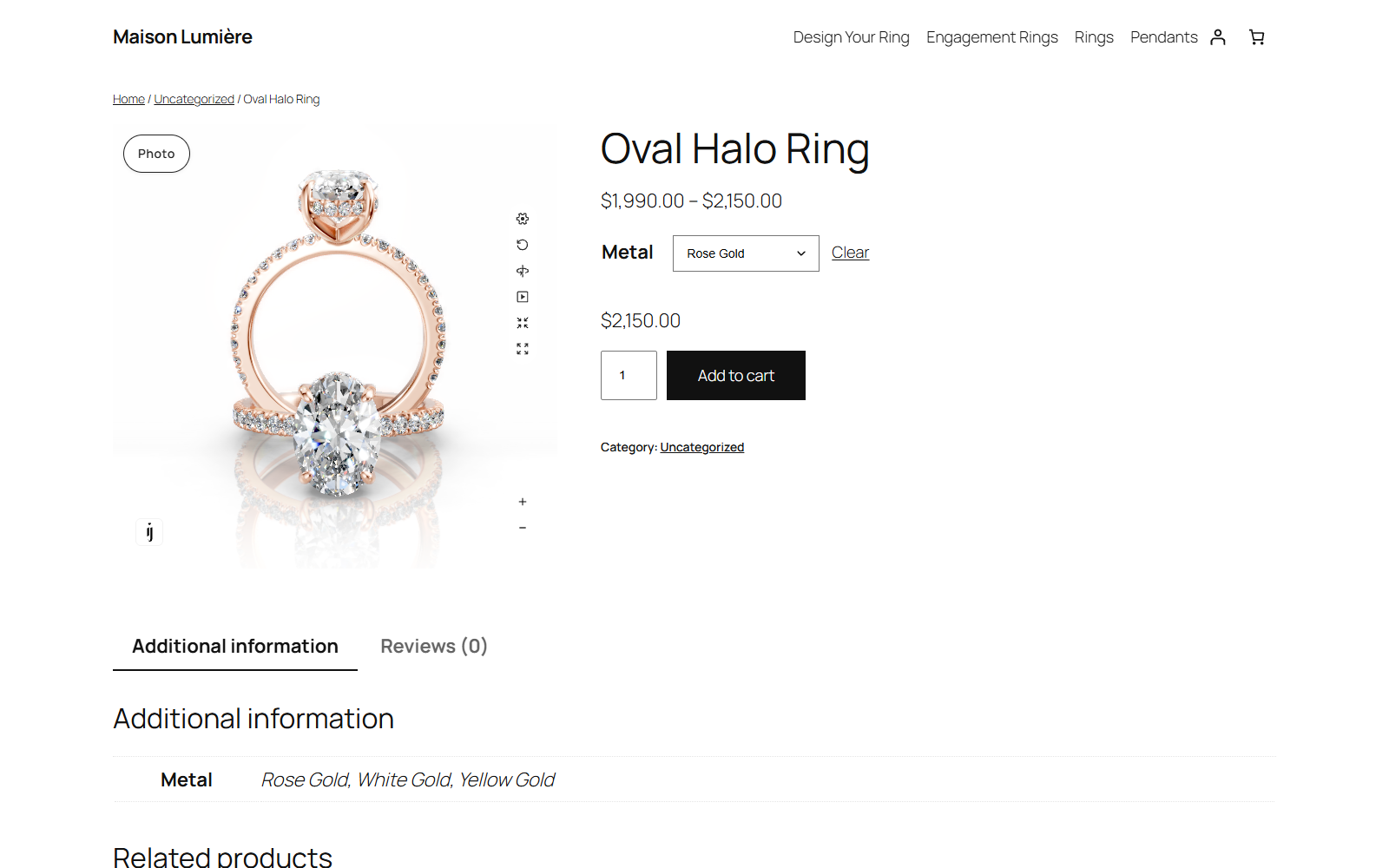
The shopper picks Rose Gold, and the 3D changes to rose gold.
Step 4: Match designs to many products at once
- Open Products › All Products and select the products.
- In Bulk actions, select Match 3D designs, then Apply.
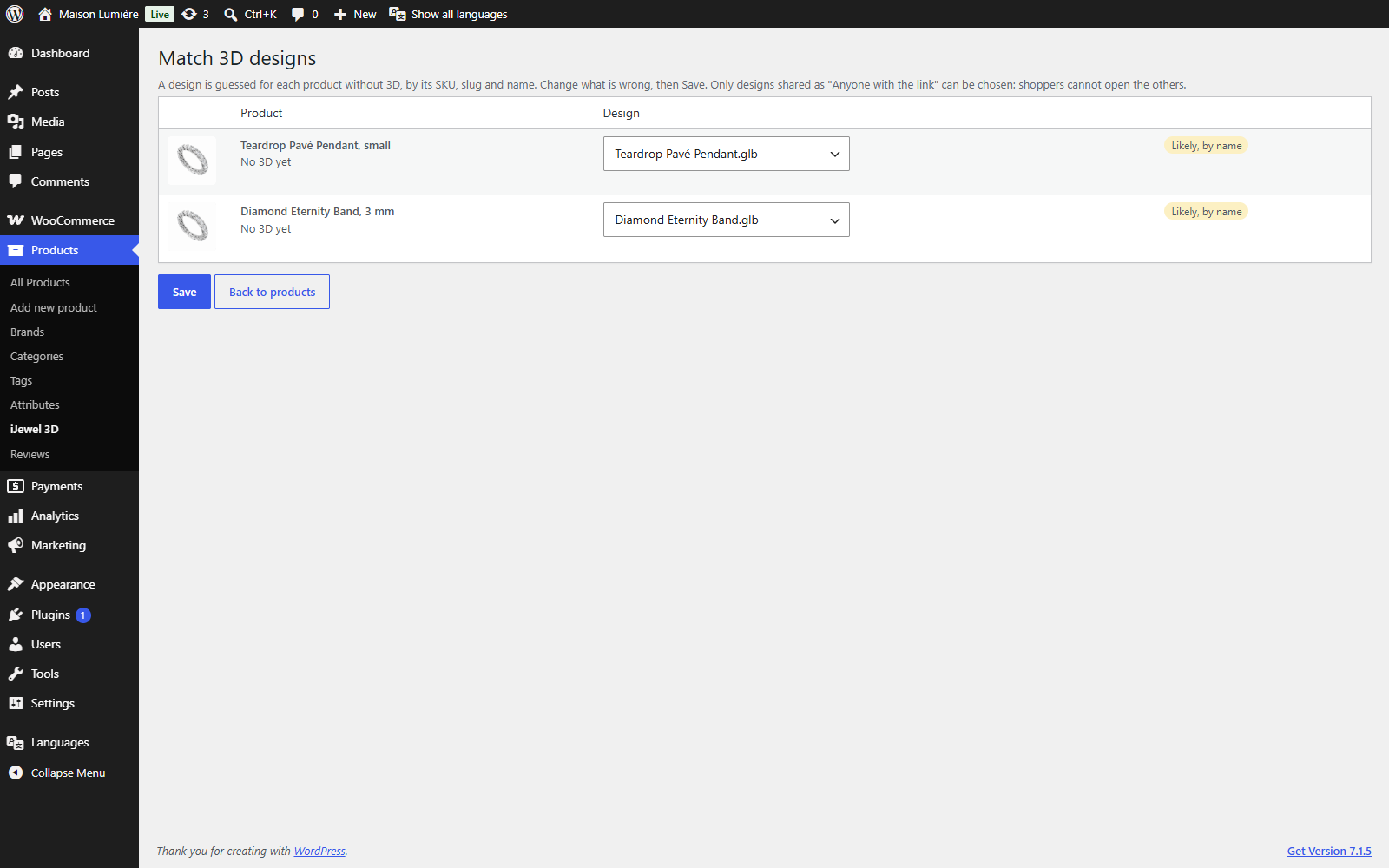
- On the Match page, check the design for each product. The plugin suggests a design when its name is like the product's name.
- Select Save.
All 4 steps are done.
Step 5: Sell a ring configurator
- In iJewel, publish the configurator and share it as Anyone with the link. Set its prices in iJewel.
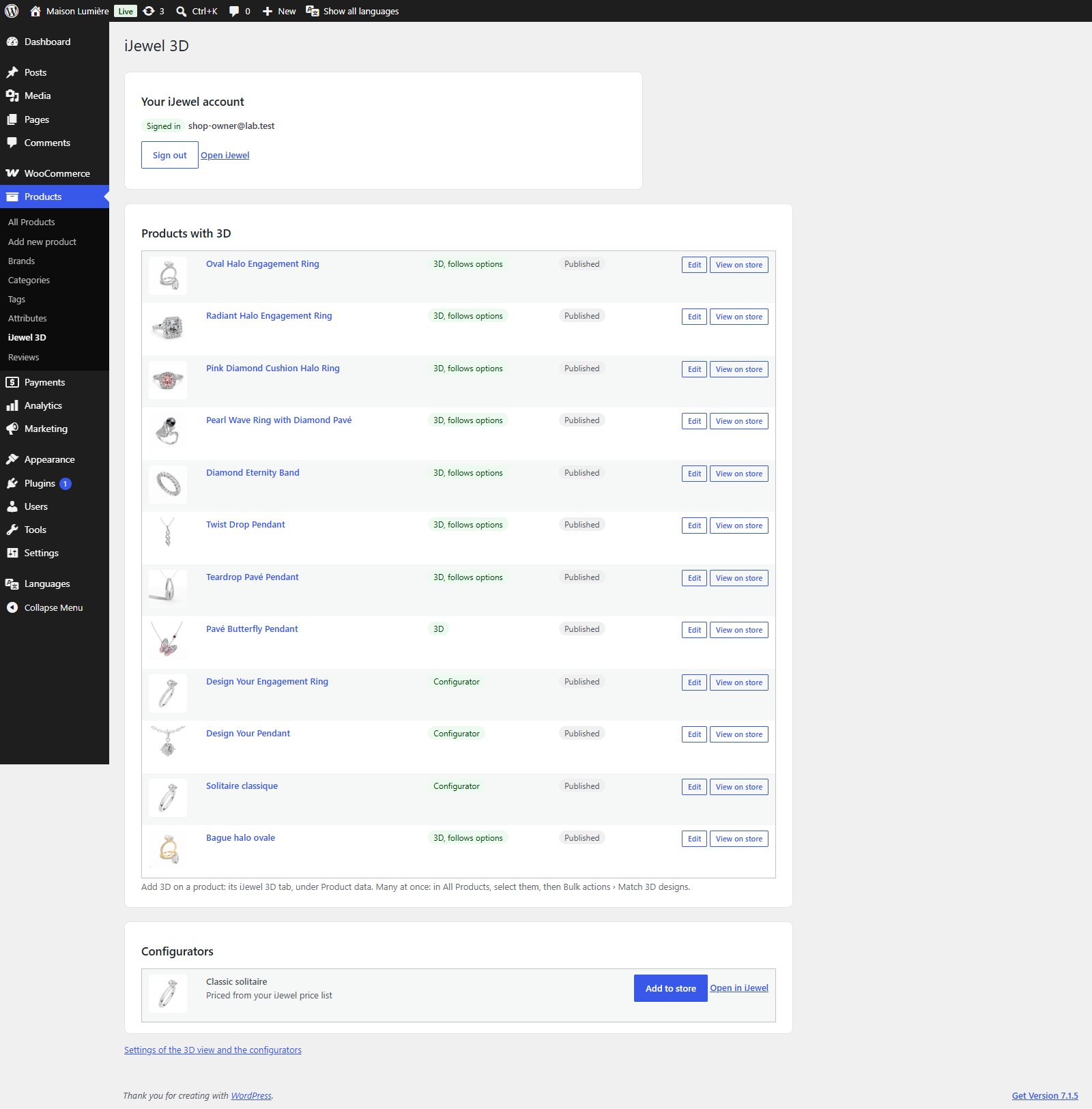
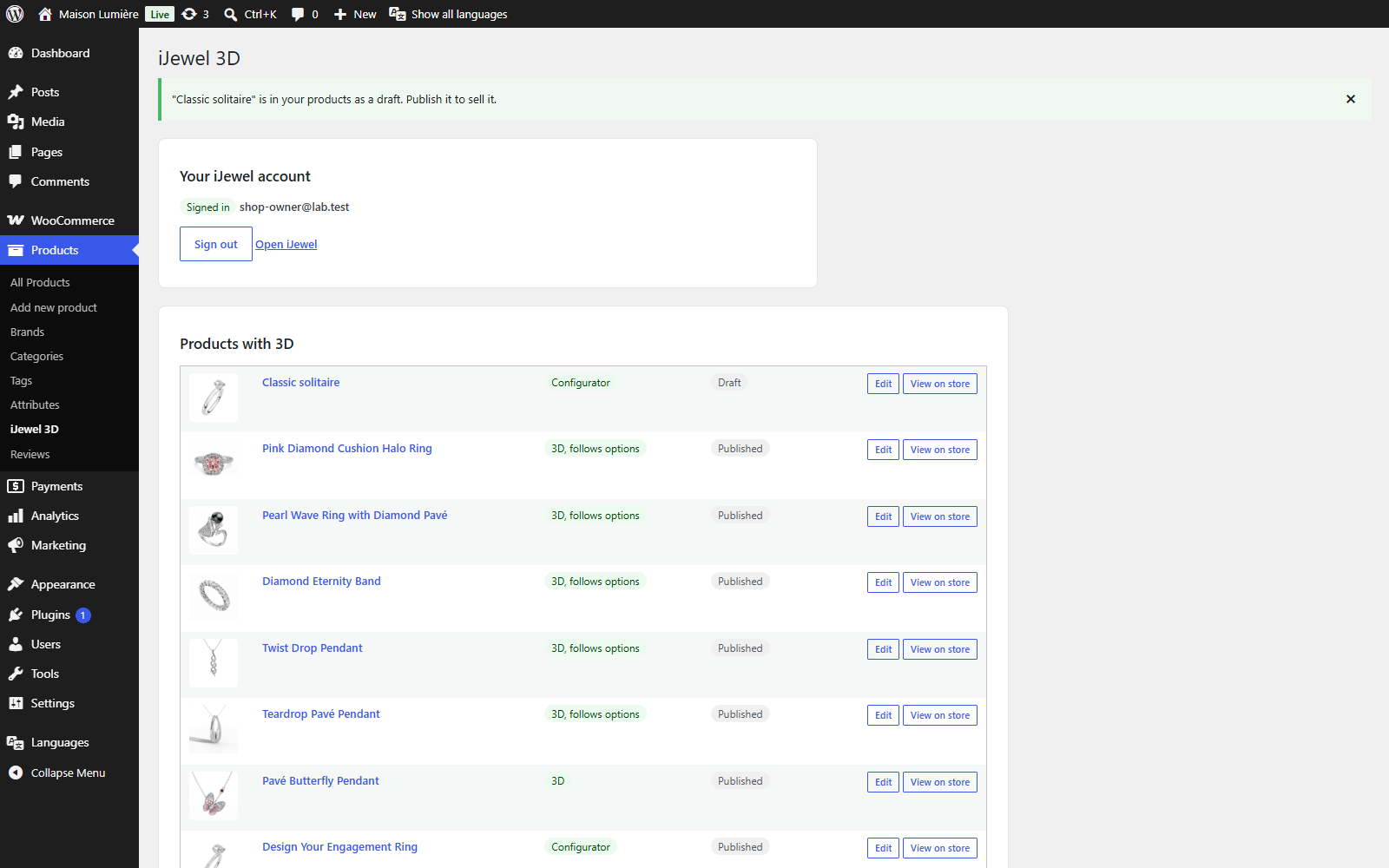
- In WordPress, open Products › iJewel 3D. Your configurators are under Configurators.
- Select Add to store. The plugin makes a draft product of the type iJewel configurator, with the configurator's picture and its starting price.
- Open the product, check it, then select Publish.
All 4 steps are done.
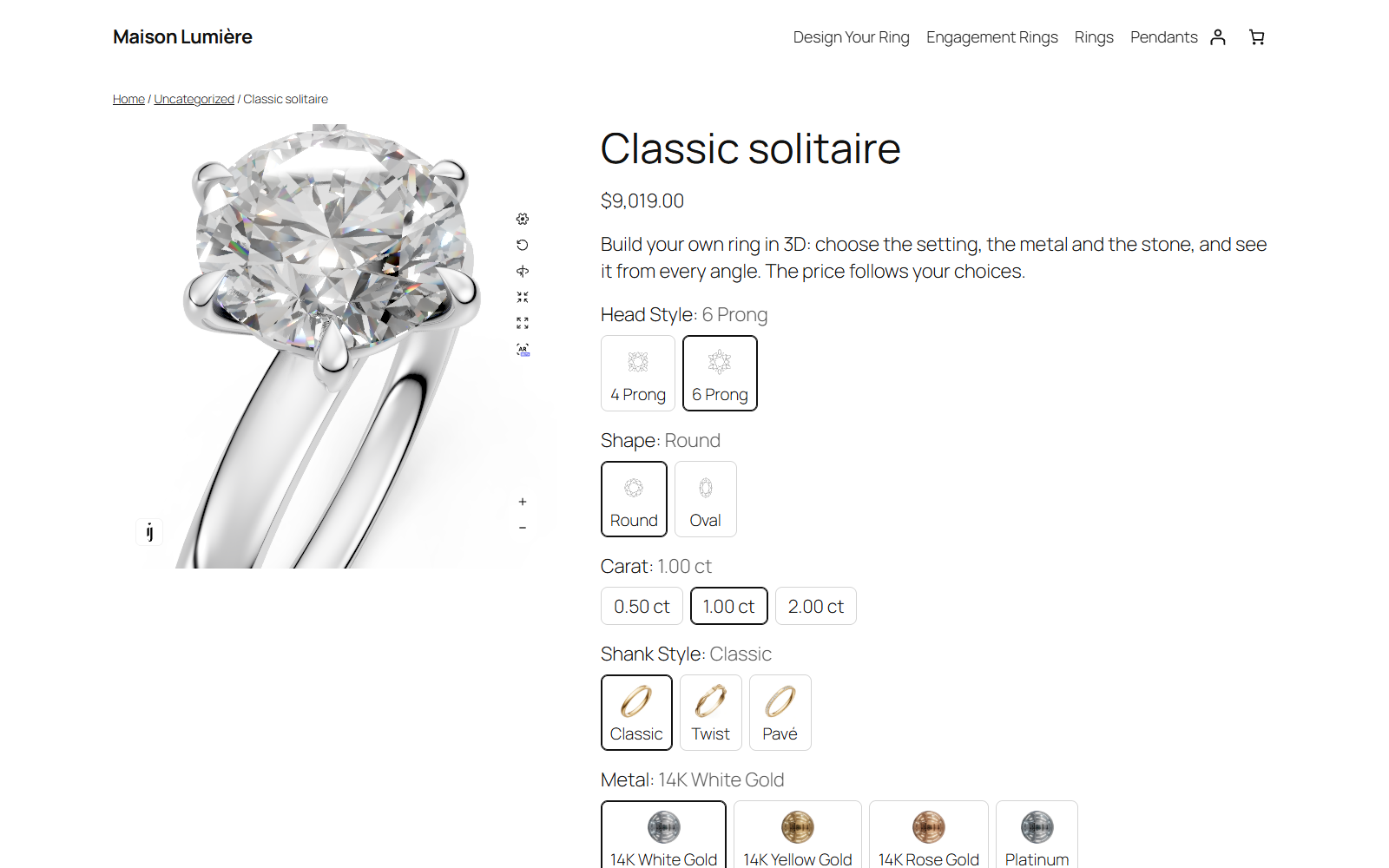
On the product page, the shopper builds the ring and sees its price change with each choice. Add to cart adds the ring as one line.
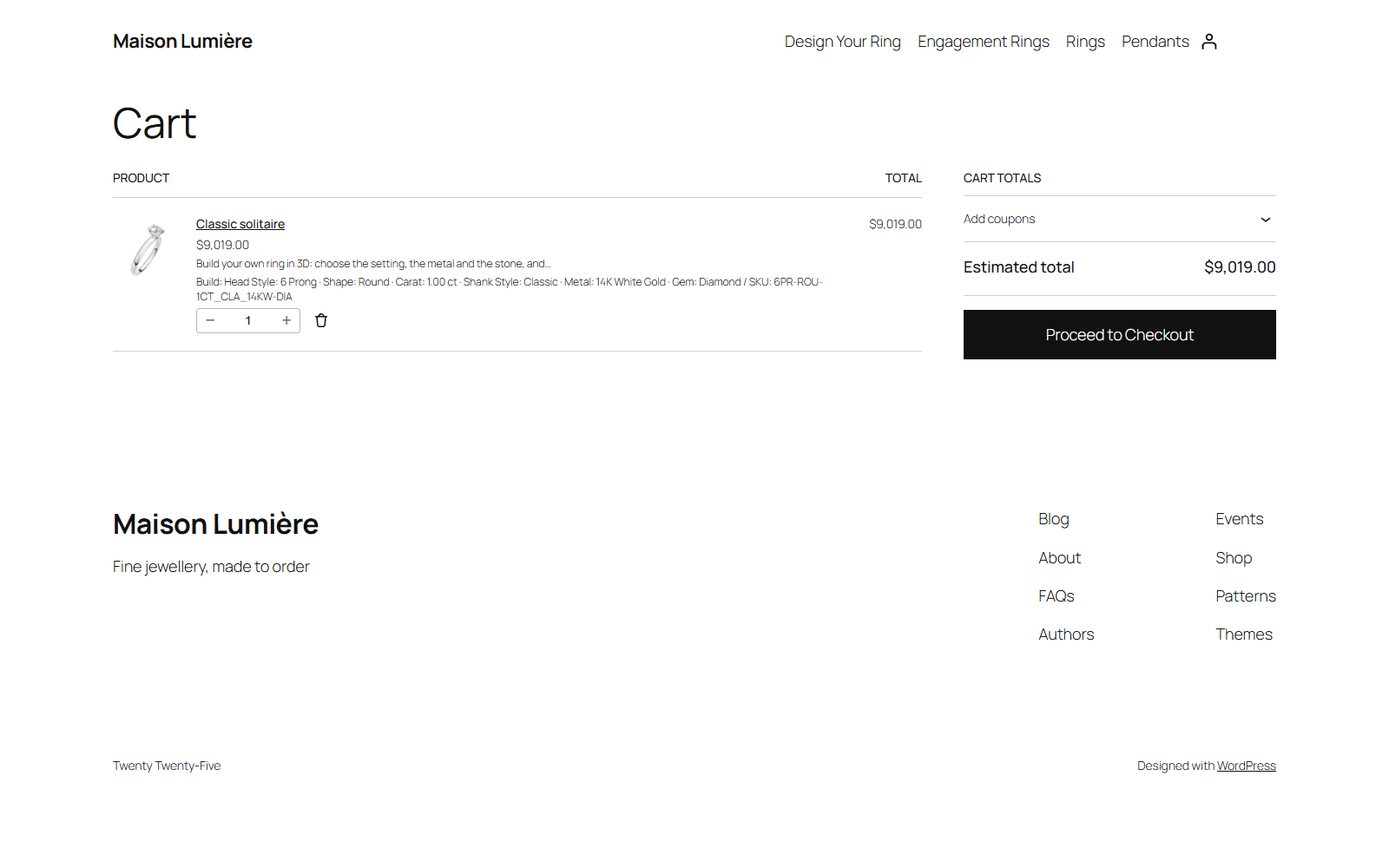
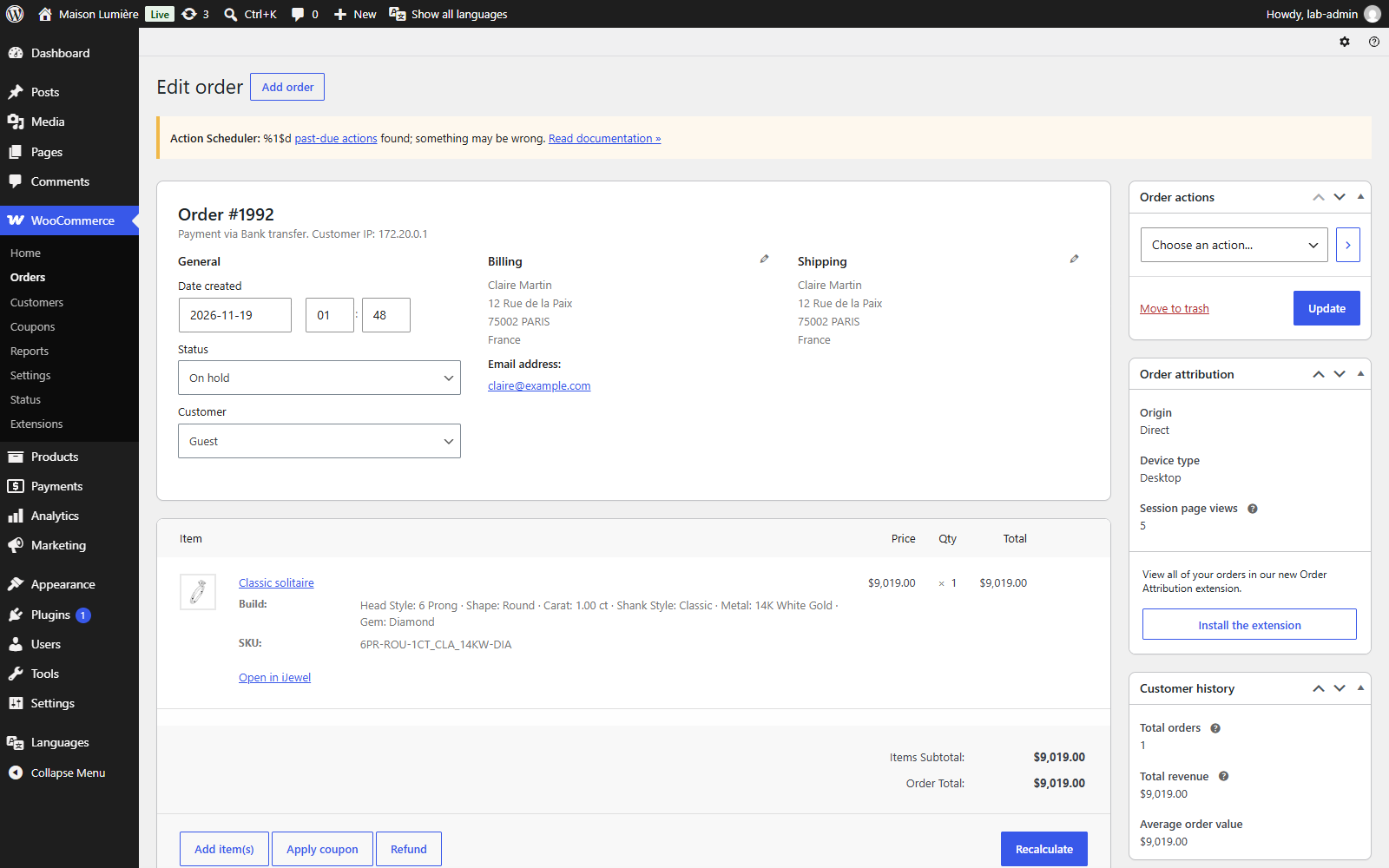
The order keeps the build, the SKU and Open in iJewel, a link to the exact ring.
How the price works
- The price comes from your configurator's price list in iJewel, not from WooCommerce.
- Your store's server asks iJewel for the price when the shopper adds the ring to the cart, and again at the cart and at checkout. A price that the shopper changes in the browser is not used.
- When you change the configurator in iJewel, publish it again in iJewel. Your store uses the new version.
Settings
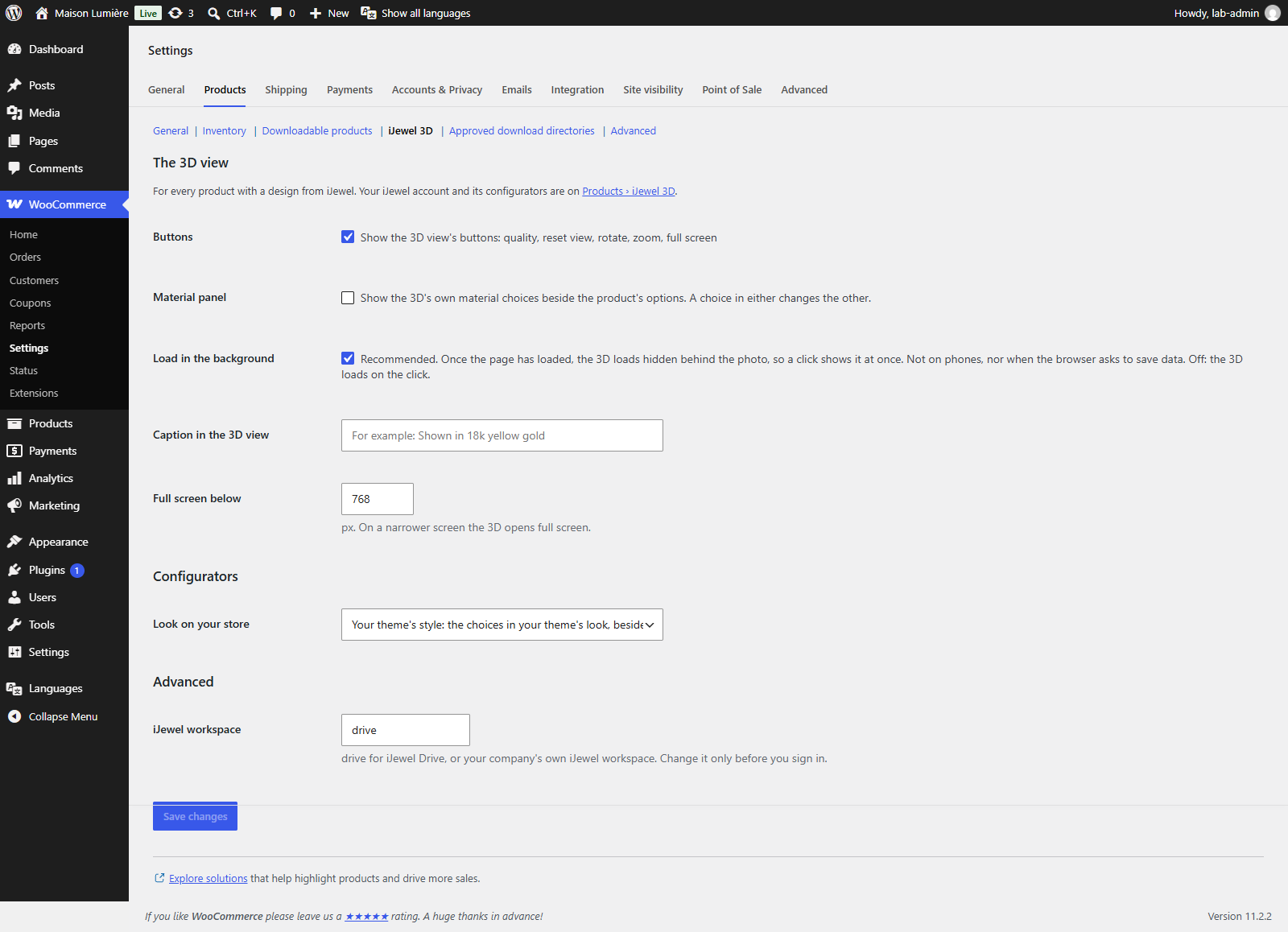
Open WooCommerce › Settings › Products › iJewel 3D.
| Setting | What it does |
|---|---|
| Buttons | Shows the 3D view's buttons: quality, reset view, rotate, zoom, full screen. |
| Material panel | Shows the design's own material choices beside the product's options. |
| Load in the background | Recommended. The 3D loads hidden behind the photo, so a click shows it at once. Not on phones. |
| Caption in the 3D view | A short line under the 3D, for example Shown in 18k yellow gold. |
| Full screen below | On a screen narrower than this width, the 3D opens full screen. |
| Look on your store | Your theme's style shows the configurator's choices in your theme's look. iJewel configurator shows the configurator as you made it in iJewel. |
| iJewel workspace | drive for iJewel Drive, or your company's own iJewel workspace. Change it only before you sign in. |
Languages
- You can translate the plugin's words (text domain
ijewel3d). - A configurator shows its steps in the shopper's language when the configurator has that language in iJewel.
- With WPML or Polylang, a product's translation shows the 3D of the original product. Set the matches once, on the original.
Troubleshooting
The product page says "This item cannot be ordered online right now". The configurator is not published, or it is not shared as Anyone with the link. Publish and share it in iJewel, then check it on Products › iJewel 3D.
The 3D does not change with the metal. Open the product's iJewel 3D tab and check the matches. The design must have material variations in iJewel.
The product tab says "Shoppers cannot open this design". Share the design as Anyone with the link in iJewel, then choose it again.
Add to store says "This configurator is not published, or not shared as "Anyone with the link", in iJewel". Publish the configurator in iJewel and share it as Anyone with the link, then select Add to store again.
Sign-in fails. Check your iJewel email and password on ijewel3d.com. If you signed up with Google, set a password with Forgot password? first.
For other questions, contact us.