
Screen Space Bevel
Screen Space Bevel (SSB) softens sharp edges on 3D models without modifying the geometry. This makes edges look more realistic by adding a subtle bevel/rounding effect in the render.
In real life, jewelry never has perfectly sharp edges — even precision-machined metal has slight rounding. SSB simulates this, making your renders look more natural and physically accurate. It's particularly noticeable on ring bands, bezels, and prong tips where sharp CG edges would otherwise look unrealistic.
The SSB setting in Post Processing controls the effect globally — disabling it here turns off SSB for all materials in the scene.
Where to Find It
This section is located on the right panel, inside the  Post Processing tab, in the SSBevel section.
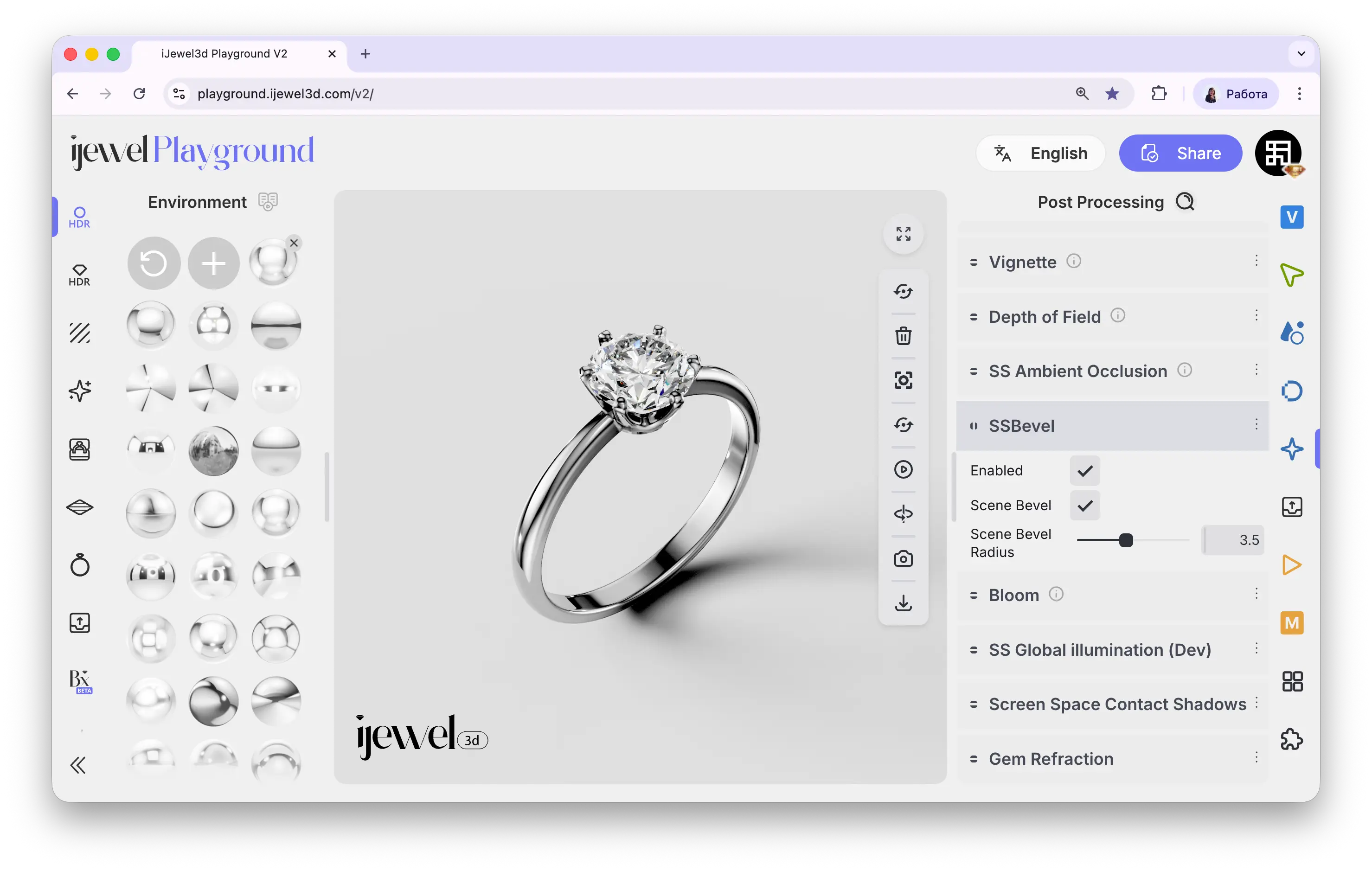
Before / After
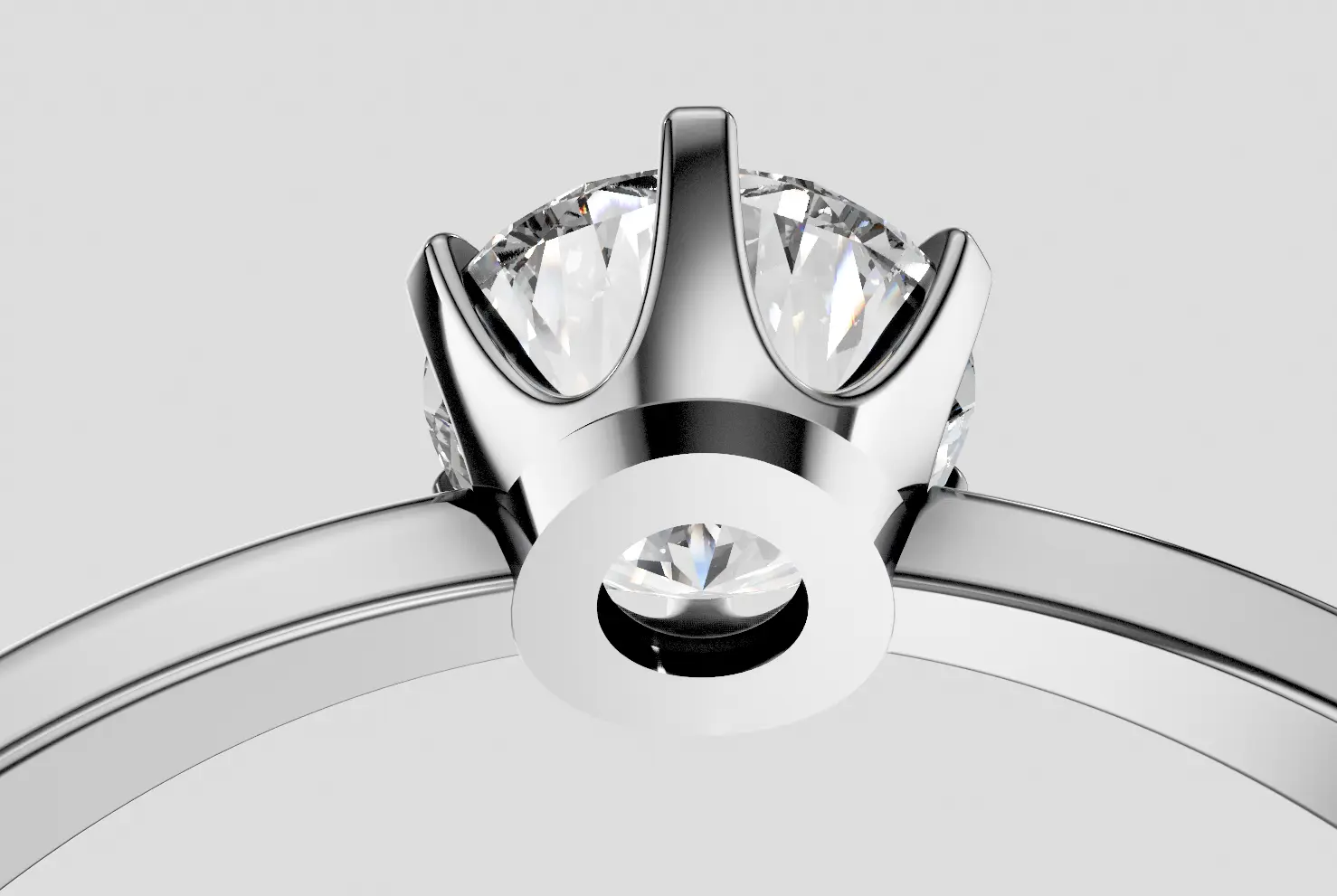
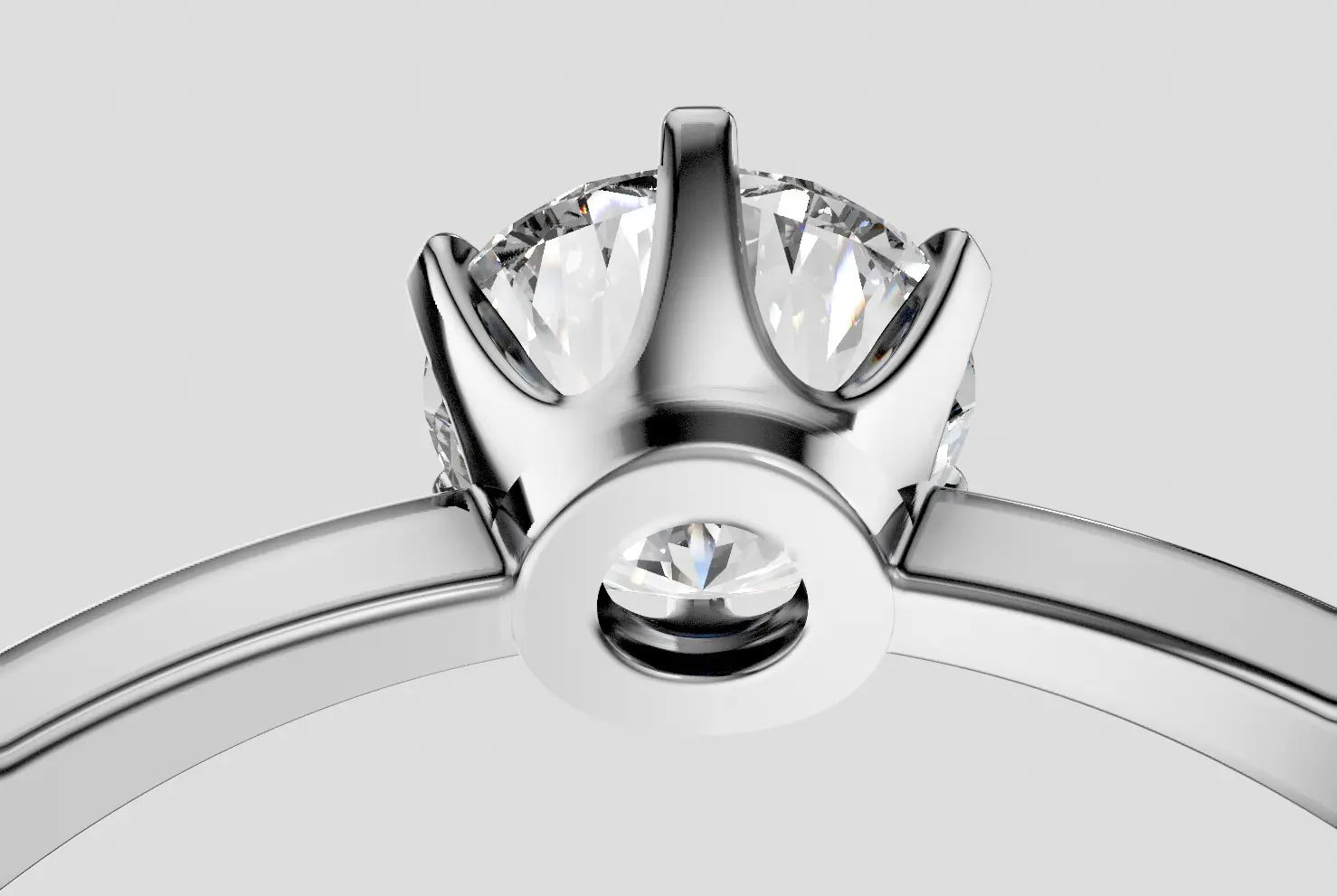
Settings
Bevel on selected parts only
- In the SS Bevel settings, keep Enabled on and turn off Scene Bevel.
- Select the part in the viewport.
- In the material settings of the part, open the SSBevel section, turn on Enabled, and set the radius.
All 3 steps are done.
The radius for one material goes from 0 to 16. The radius for the full scene, Scene Bevel Radius, goes from 0 to 8. Use the material setting when you need a value above 8.
SSB in Other Locations
SSB can also be configured per material and at the scene level:
- Per material — When you select an object via Picking, the material settings include an SSBevel section with its own radius slider. This lets you control the bevel strength for individual materials separately.
- Left panel → Advanced → Plugins — Contains an SSBevel checkbox and SSBevel Intensity slider that act as scene-wide overrides.
Related Pages
- Screen Space Ambient Occlusion (SSAO) — Contact shadows in crevices
- Screen Space Reflections (SSR) — Real-time reflections
- Outline — Selection highlight settings