
Prepare 3D Models for BatchX
BatchX renders a folder of 3D files with one set of scene settings. The files must obey the 3D model guidelines: millimetres, one layer for each material with the name Metal 01 or Gem 01, one gem layer for each cut, flat facets on the stones, block instances for the identical stones, and less than 200,000 triangles. The steps for your tool: Rhino and MatrixGold, Blender, other tools.
This page adds the points that matter for a batch.
Formats
BatchX reads .3dm, .fbx, .obj, .glb, .gltf and .stl. Use .3dm from Rhino and MatrixGold: it keeps the layers. An .stl file has no layers, so the whole model gets one material.
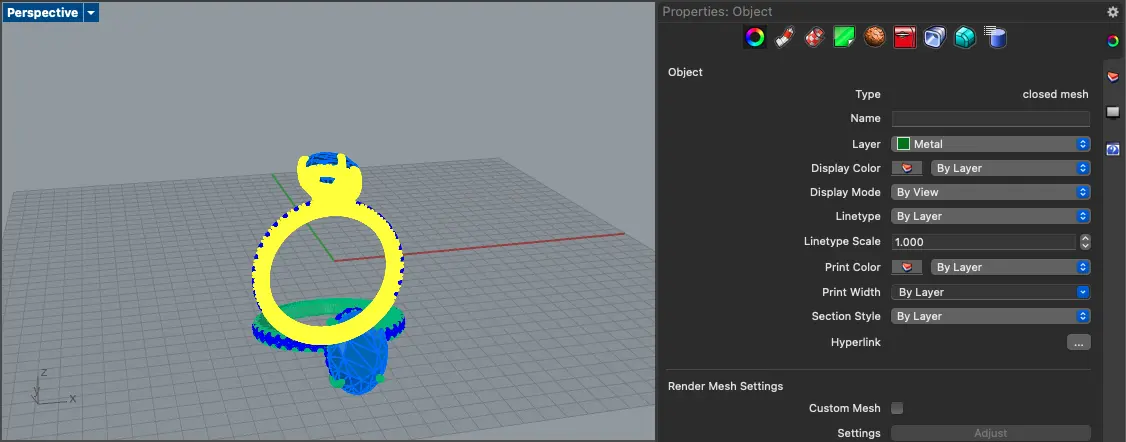
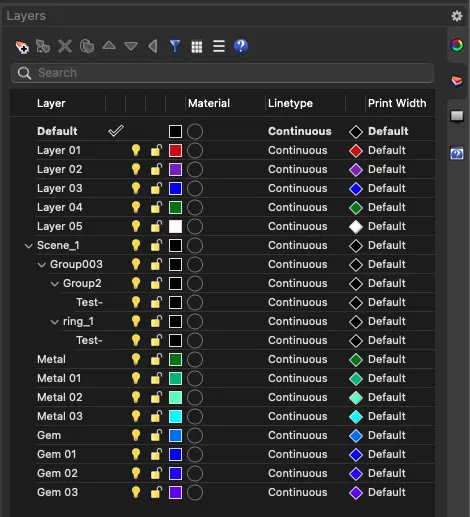
One material for each layer, in every file
BatchX makes one material from each layer of the 3DM file. It renders one image or video for each combination of the materials in the scene settings. The layer names must be the same in every file of the batch, with the same spelling and no space at the start or the end.
| Layer name in the file | In the scene settings |
|---|---|
Metal 01 | The material configuration Metal 01 |
Gem 01 | The material configuration Gem 01 |
| A layer with another name | No material. The part renders in the layer colour. |
- Put a part on its own layer only when it needs its own material. Each extra layer multiplies the combinations.
- For a two-tone batch, use
Metal 01for the shank andMetal 02for the head in every file. - Put each gem cut on its own gem layer. Stones of one cut can share one layer.
Export from Rhino
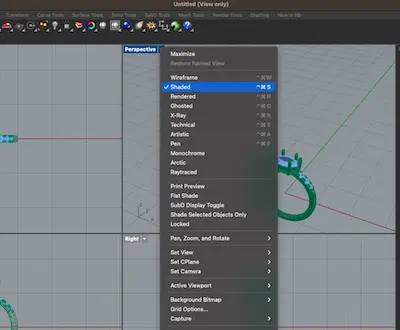
- Set the viewport to Shaded mode. Rhino makes the render meshes that BatchX needs.
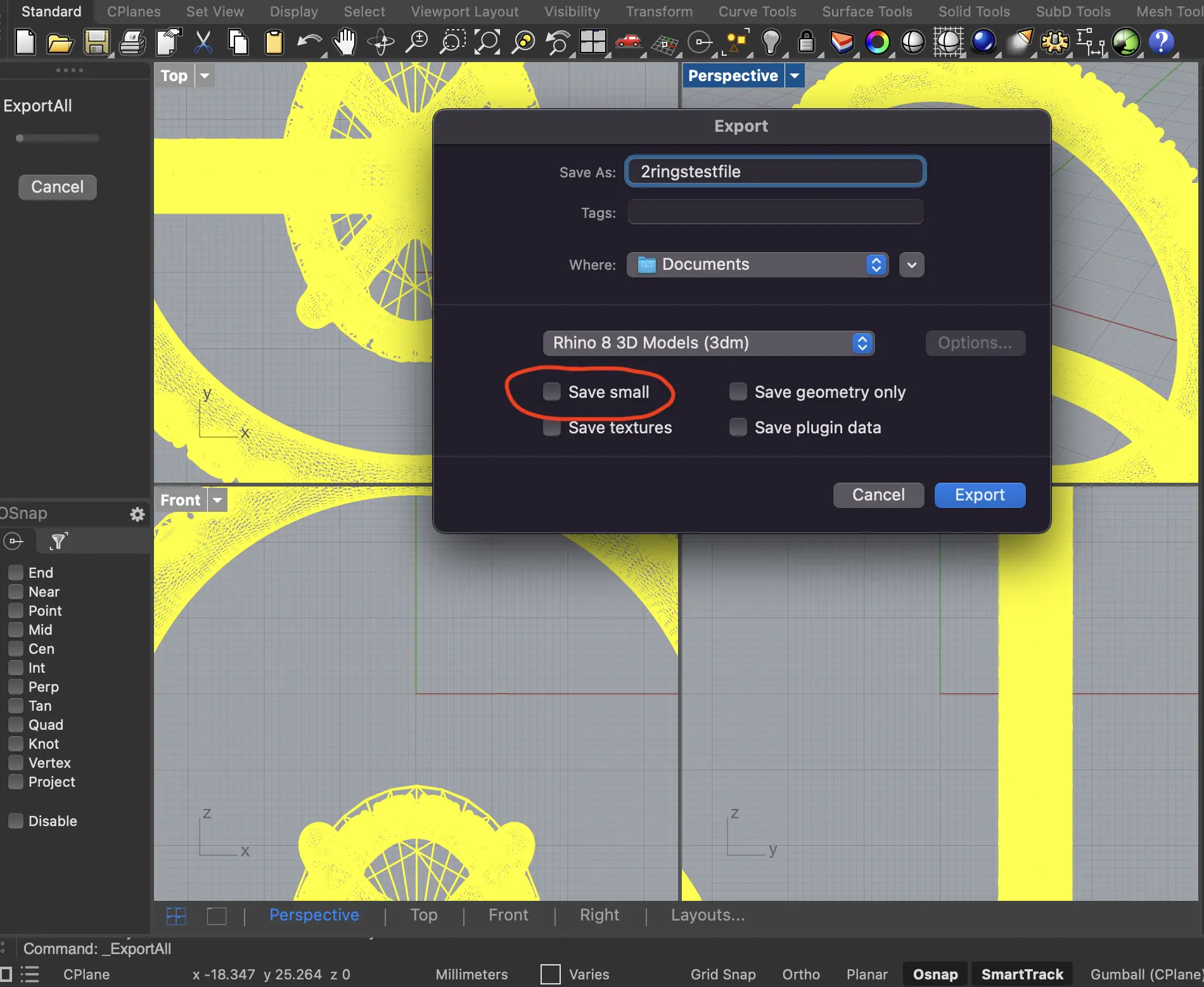
- Save the file as
.3dmwith Save small off. Save small deletes the render meshes. - Put all the files of the batch in one folder.
All 3 steps are done.
Keep the batch light
- A batch of heavy files can stop before the end. Keep each file below 200,000 triangles.
- Use block instances for the identical stones, prongs and chain links.
- Delete the curves, points and construction objects from each file.
Render-ready, not production-ready
A production file has long prongs, sharp edges, seams and parts that go through each other. Correct them before the batch. The 3D model guidelines give the list.
Video tutorials
- Import and layer a 3DM file in Rhino
- Layers and properties in Rhino
- Repair wrong normals in Rhino